Ergonode PIM Autumn Release: Find Products Faster and Work More Efficiently
Ergonode PIM Autumn Release: Find Products Faster and Work More Efficiently
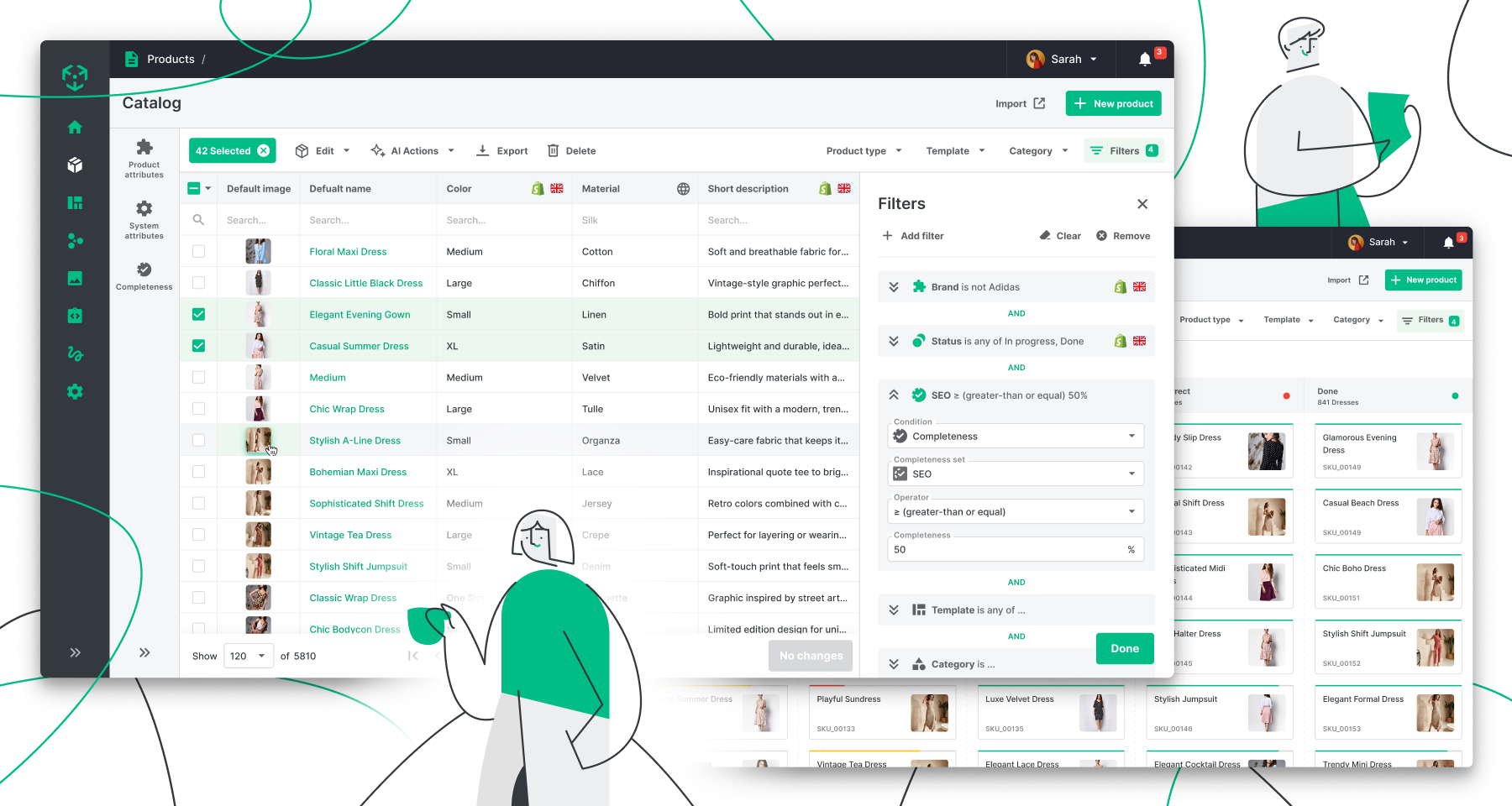
When working with a large product catalog, it’s not just about the data you store. It’s also about how quickly you can find, review, and update it. That’s why the latest Ergonode release focuses on improvements that make catalog management easier — from more flexible filtering and simpler product editing to better ways of working with media and automations.
The Autumn Release introduces several important changes. Here are the highlights:
- Advanced filtering. Combine multiple criteria to narrow thousands of products down to a specific set in seconds, so you can focus on exactly the products you need.
- Enhanced table view. Improvements include new side panels, quick filters, and the ability to configure selected system attributes directly in the table view. No switching between screens or losing context.
- Redesigned side panels. As part of the table view improvements, we’ve reorganized product attributes, system attributes, and completeness into separate tabs. We’ve also made it much easier to add multiple attributes and attribute groups as columns or filters, so you can build a catalog view tailored to your needs in moments.
- Improved saved views. You can now overwrite existing private or shared views and return to the default view with a single click. The current view name is also visible and gently highlighted for smoother navigation.
- Manual automation runs, plus improvements to media management and AI. One important change is that you can now run any automation manually instead of waiting for a product update to trigger it.
We’ve also introduced a range of other improvements that make working in Ergonode more comfortable and efficient. These changes support our vision of Ergonode as a visual editor for product data models, making even the largest catalogs easier to manage through an intuitive, straightforward interface.
This article covers all the changes in detail. Prefer to see the new features in action? Watch the video below.
[VIDEO]
1. Advanced filtering: Find the information you need and update it faster
The larger your catalog, the harder it becomes to find the right products quickly. Basic search isn't always enough — especially when you need to combine multiple conditions, compare attribute values, or identify products that require a specific change.
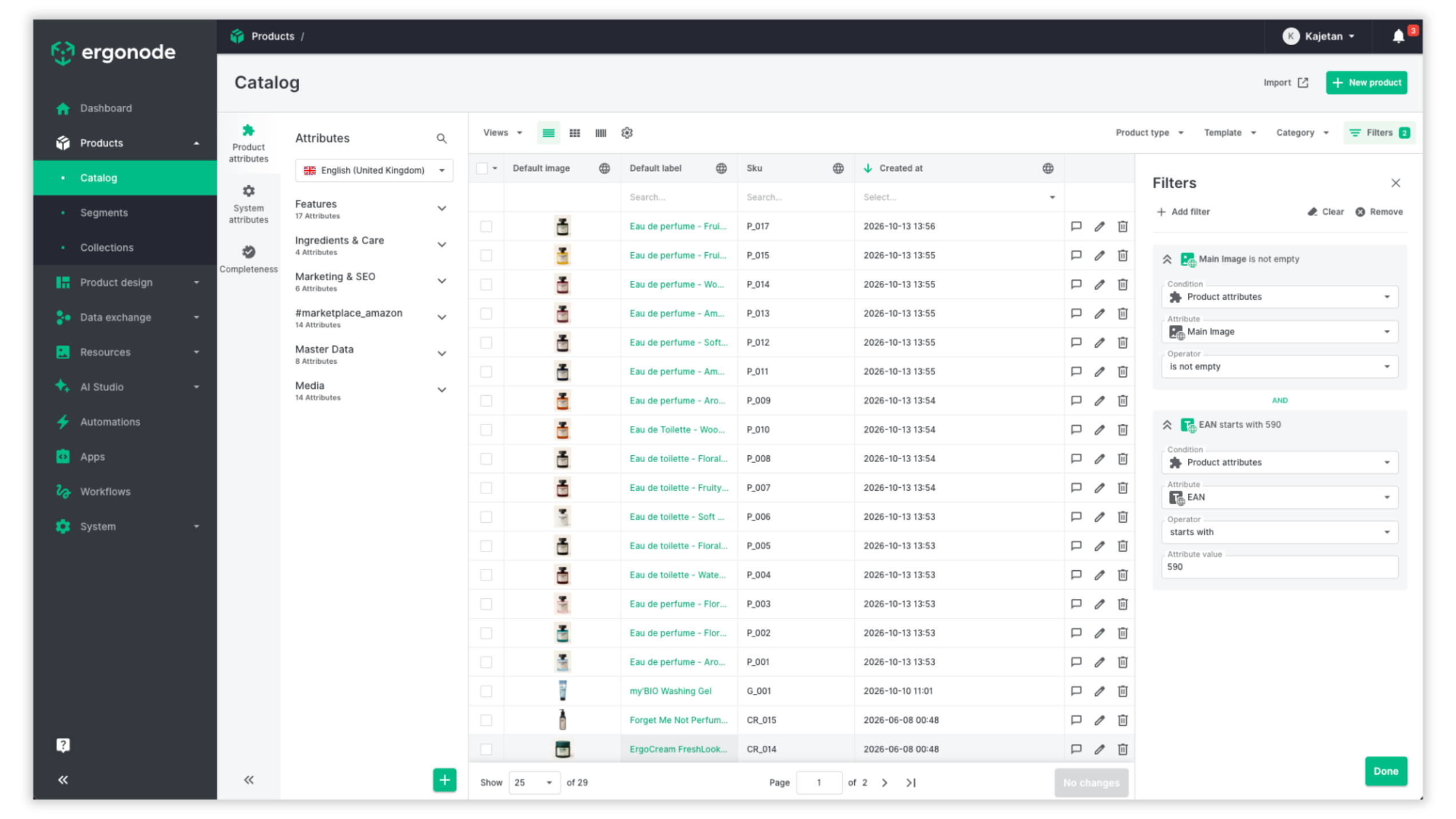
Ergonode's new filtering capabilities give you greater control over this process. You can combine conditions, use additional operators, and define more precisely which products appear in your results. The same capabilities are also available when working with media in the DAM module.
Filtering works in much the same way as building an automation in Ergonode: you add conditions to narrow down the results. For both product attributes and system attributes, you specify the attribute, operator, and value. Keep in mind that the available operators depend on the attribute type.
More operators, more precise results
All operators available in automations are now also available in catalog filters and the Media Library. We've added several new options, too, including searches based on the beginning or end of a text value, character and item counts, and matching multiple alternative values.
Depending on the data type, you can now:
- Search for text fragments or SKUs using the Contains and Does not contain operators.
- Check the beginning or end of a value using Starts with and Ends with.
- Filter by multiple values at once using Contains any of to find products that have at least one of the selected options for a given attribute.
- Compare numeric values using operators such as Less than, Greater than, Less than or equal to, and Greater than or equal to.
- Count characters or items using the Text count and Items count operators with the appropriate comparison.
Note: It's important to distinguish between Contains and Is any of. Contains checks whether a value includes the specified text or element, while Is any of lets you check whether a value matches at least one of the values you provide.
The latter is particularly useful when working with lists copied directly from a spreadsheet. You can paste not only SKUs (since this was available before), but also numeric values, prices, text, or units into the filter. This is especially helpful for multi-value attributes such as product features, tags, or assigned categories. Also, the multi-select attributes can be filtered with Contains to see all products that include all provided options, and Contains any of to find products that include at least one of the provided options.
The full list of operators for attribute and system operators available per attribute type is below.
Product attributes
Text: is, is not, contains, does not contain, is any of, is none of, character count = (equal), character count < (less-than), character count > (greater-than), starts with, ends with, contains any of, does not contain any of, is empty, is not empty
Textarea (including the RTE editor): is, is not, contains, does not contain, is any of, is none of, starts with, ends with, is empty, is not empty
Numeric, Price, Unit: = (equal), ≠ (not equal), < (less-than), > (greater-than), ≥ (greater-than or equal), ≤ (less-than or equal), is any of, is none of, is empty, is not empty
Date: is, is not, before, after, greater than or equal, less than or equal, is empty, is not empty
Select: is, is not, is any of, is none of, is empty, is not empty
Image: is, is not, is any of, is none of, is empty, is not empty
Multi select, Gallery, File, Product relations: is, is not, contains, does not contain, items count = (equal), items count < (less-than), items count > (greater-than), contains any of, does not contain any of, is empty, is not empty
System attributes
SKU, Default label: is, is not, contains, does not contain, is any of, is none of, character count = (equal), character count < (less-than), character count > (greater-than), starts with, ends with, contains any of, does not contain any of
Created by, Edited by: is, is not, contains, does not contain, is any of, is none of, contains any of, does not contain any of
Created at, Edited at: is, is not, before, after, greater than or equal, less than or equal
Index: = (equal), ≠ (not equal), < (less-than), > (greater-than), ≥ (greater-than or equal), ≤ (less-than or equal), is any of, is none of
Product type, Template, Status: is, is not, is any of, is none of
Default image, Variant parent: is, is not, is any of, is none of, is empty, is not empty
Categories, Product collections, Product children, Product variants: is, is not, contains, does not contain, items count = (equal), items count < (less-than), items count > (greater-than), contains any of, does not contain any of, is empty, is not empty
Completeness, Completeness set: = (equal), ≠ (not equal), < (less-than), > (greater-than), ≥ (greater-than or equal), ≤ (less-than or equal)
How can you use advanced filters in practice?
The new operators do more than help you find products faster. They also make it easier to validate product data, prepare catalogs for publication, and identify records that need updating.
Example 1: Find products with a specific number of images or related products
Use the Items count operator with a condition such as less than 3 on a product's image gallery attribute to find all products with fewer than three images in their gallery.
The same operator can help you check the number of related products assigned to a product. For example, applying Items count < 3 to a related products attribute will show products with fewer than three related products assigned for cross-selling.
This makes it easier to identify opportunities to improve product recommendations and support additional sales through better product relationships.
Example 2: Audit hazardous product information in the construction industry
Products sold in the construction industry often require numerous certificates and specific technical parameters to be accurately documented and assigned.
Advanced filters can help validate hazard classification information within a particular product category. Start by using a quick filter to display products in the “Adhesives and Resins” category. Then, for the “Hazard Statements” attribute, apply the Does not contain any of operator and select the relevant codes, such as GHS05, GHS02, and GHS07.
The results will show products that don't currently contain any of the selected codes and may require further validation.
This helps your team identify records that need review. The filter itself doesn't determine whether a product complies with applicable regulations — it helps you find the products that need checking.
Example 3: Audit SEO titles
Every product should have a meta title for search engine optimization. A common issue, however, is exceeding the recommended character length, which can cause titles to be truncated in some search results, particularly on mobile devices.
The Text count operator lets you check the length of each value in the Meta Title attribute. Enter a character limit — for example, 60, a commonly used guideline for Google title tags — and filter the catalog to find products that may need attention.
The same approach can help you validate titles against the requirements of specific marketplaces.
Example 4: Handle requests for quotation (RFQs) copied from Excel
Imagine a B2B customer sends you a spreadsheet containing 40 product references and asks for a wholesale quote. These references might be EANs or internal product codes.
Instead of searching for each code individually or using VLOOKUP in Excel, you can work directly in your PIM. Simply paste the entire column of codes into the filter and use the Is any of operator.
You'll quickly narrow the catalog down to the products included in the request. This can reduce response times for your sales team and help minimize errors when preparing quotes.
Example 5: Validate product data in the cosmetics industry
The cosmetics market has strict requirements for product information. Before a new cream, serum, or shampoo appears in an online beauty store, whether B2B or B2C, its product record needs to contain accurate and complete key information, including the full ingredient list (INCI).
Suppose a product is marketed as free from parabens and SLS. You can use the Contains any of operator to identify products whose ingredient information includes terms you want to review, such as paraben, SLES, or SLS.
This helps your team flag potential inconsistencies for further review before the products are published.
Filtering as part of everyday work
Advanced filtering is especially useful when you regularly work with large datasets. You can identify products that need information added, prepare groups of records for updates, and reduce the need to browse the catalog manually.
Filters are also available in the Media Library, making it easier to find assets based on their attributes.
2. Catalog table view: Easier editing and greater control over your data
The catalog is where many teams spend a significant part of their working day. That's why this release introduces several improvements designed to make editing product data simpler and more efficient.
A redesigned side panel for columns and filters
We've introduced a new side panel that organizes access to product data and makes it easier to manage columns and filters.
The panel has separate tabs for:
- Product attributes
- System attributes
- Data completeness
You can select multiple attributes at once and add them to the table as columns or use them for filtering. Drag and drop is still available, so you can arrange the view to suit your workflow.
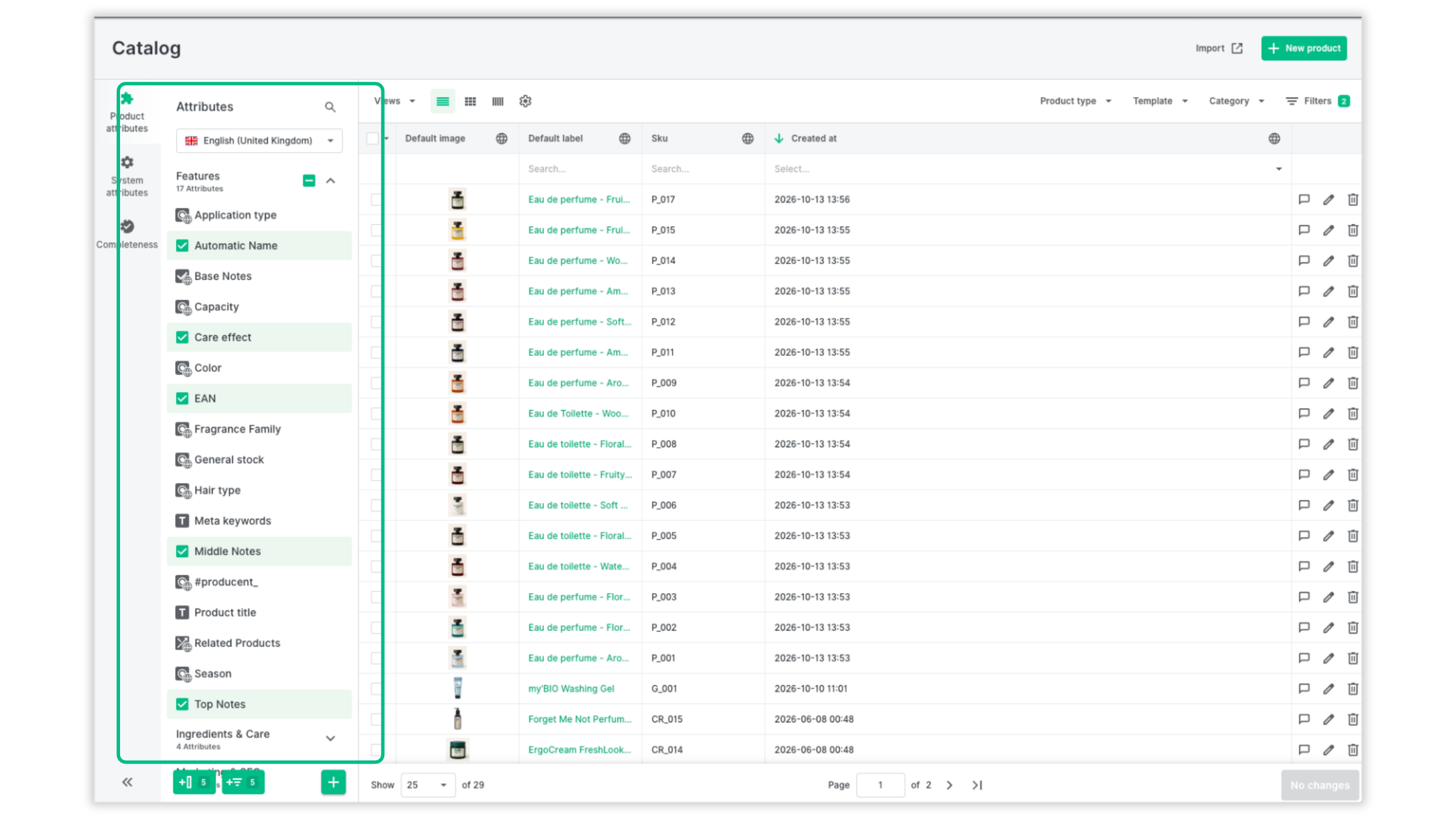
You can also add entire attribute groups. With a single click, all attributes within a group can be added as columns in the table or made available in the filter menu.
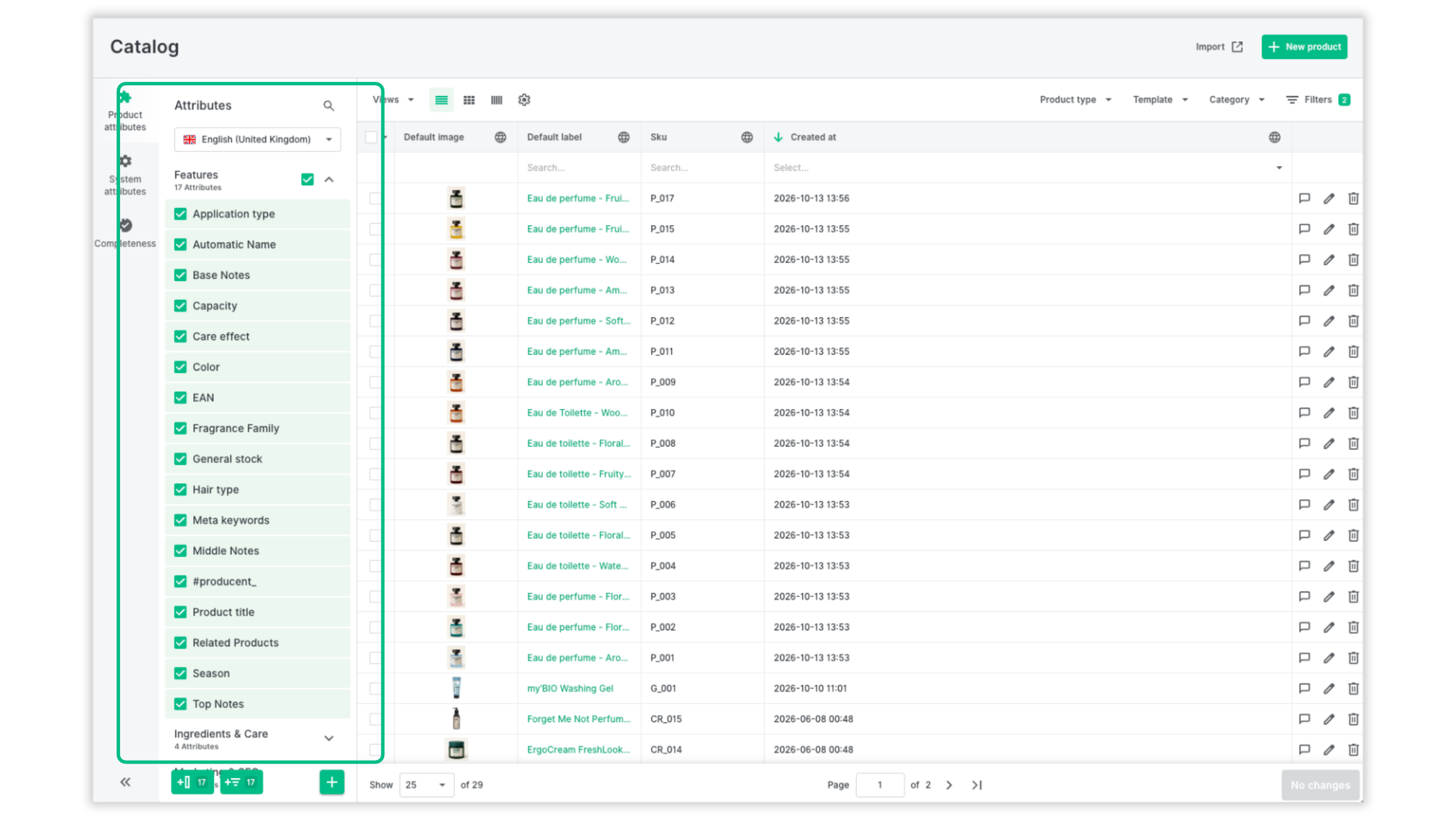
Why does this matter? If your catalog has a well-designed data structure, with attribute groups that bring related parameters together, you can quickly access the information you need for specific channels or requirements.
For example, you could create an attribute group containing the parameters required for Amazon, or a group tailored to Digital Product Passport (DPP) requirements. You can then add the relevant attributes to your view without selecting them individually.
You can also edit selected system attributes directly in the table view, including the product template, and category, along with other system attributes that were available before (like status).
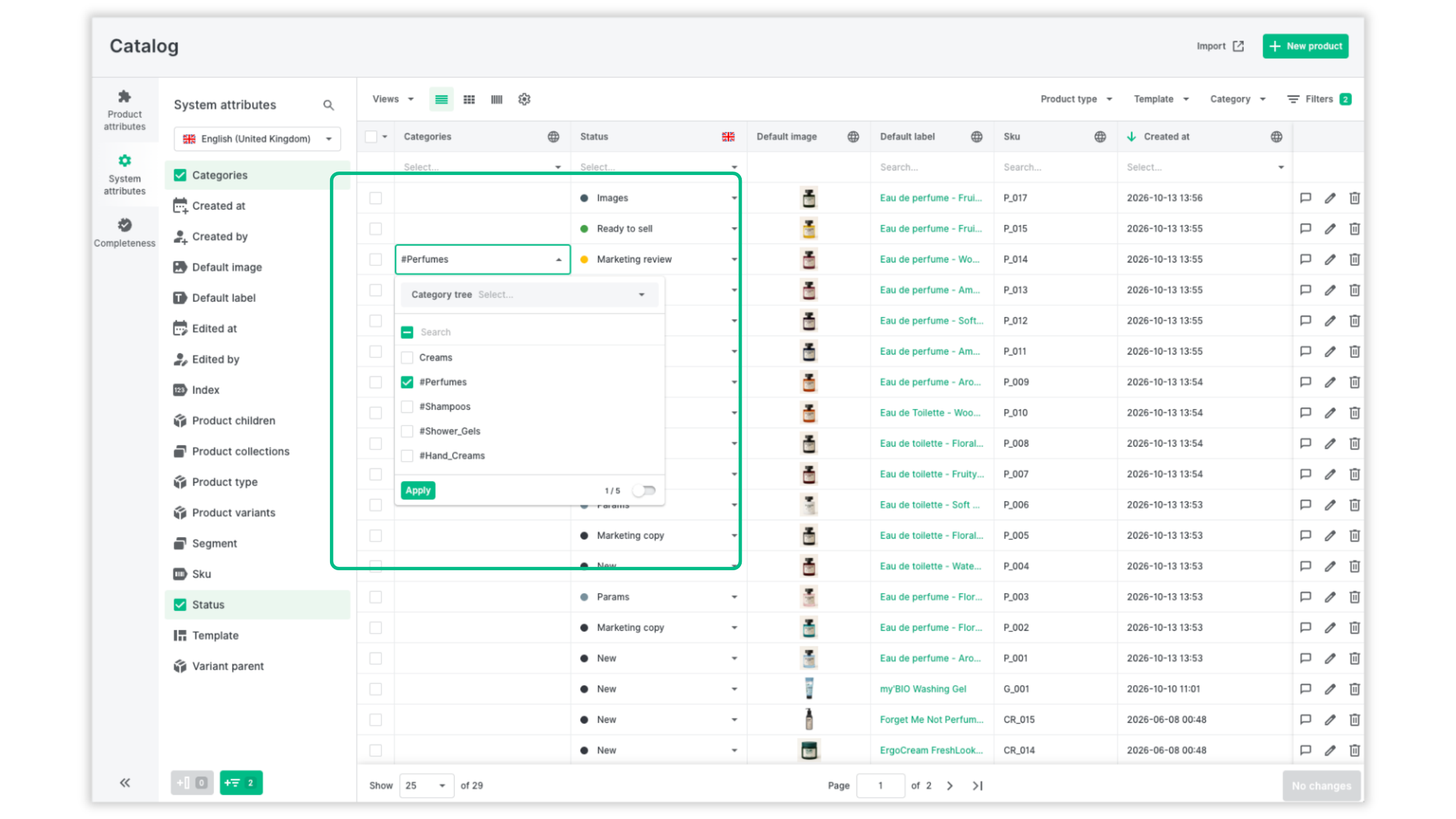
Newly added items are briefly highlighted when they appear in the table, making it easier to spot changes to your view configuration.
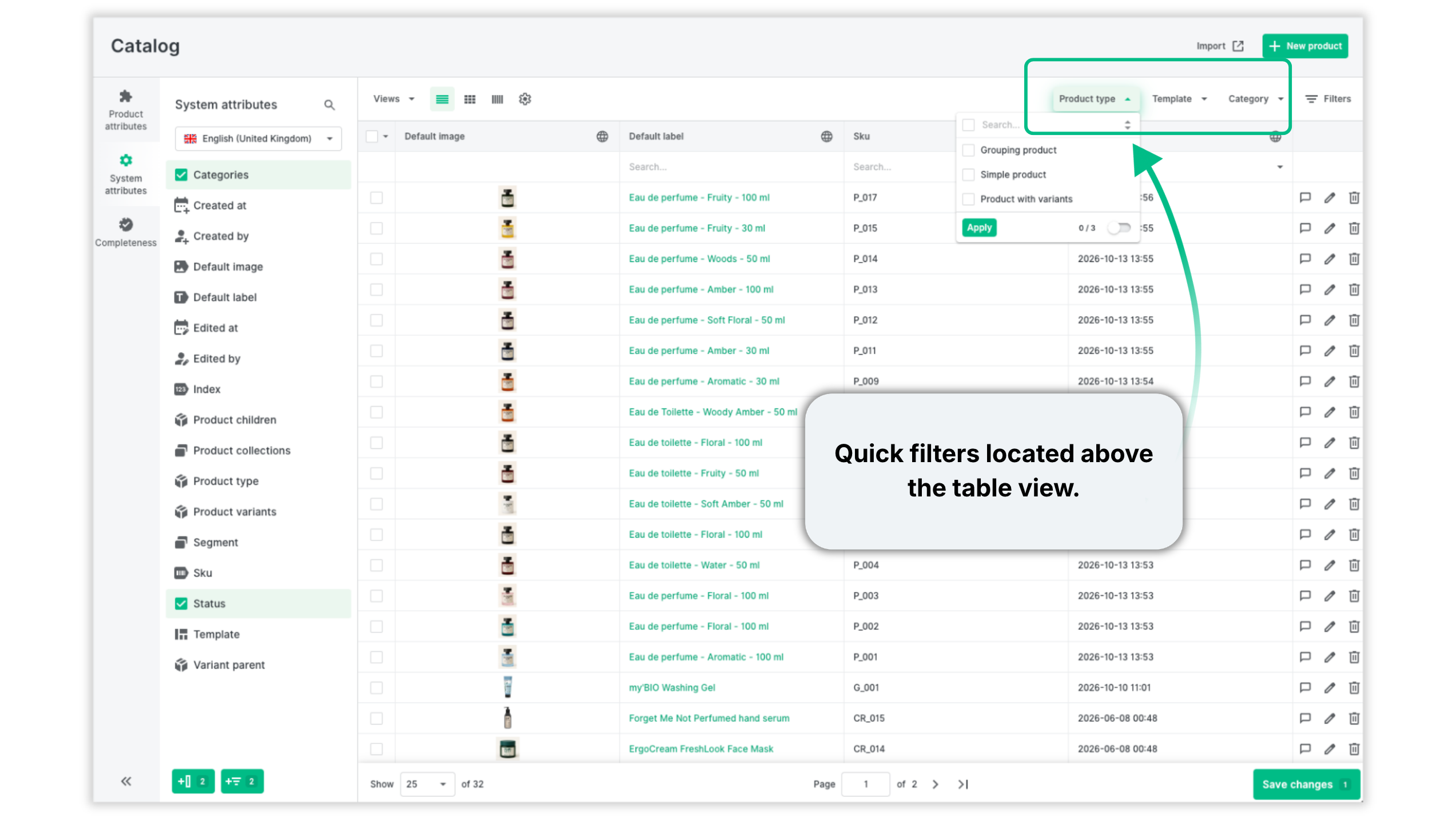
Quick filters
One of the key improvements is the addition of quick filters, which let you narrow the product list by:
- Product type
- Template
- Category
This makes it much faster to select the products you want to work on.
You can also select an entire category branch, making it easier to work with complex catalog structures. Just a few clicks are enough to select the relevant categories and subcategories.
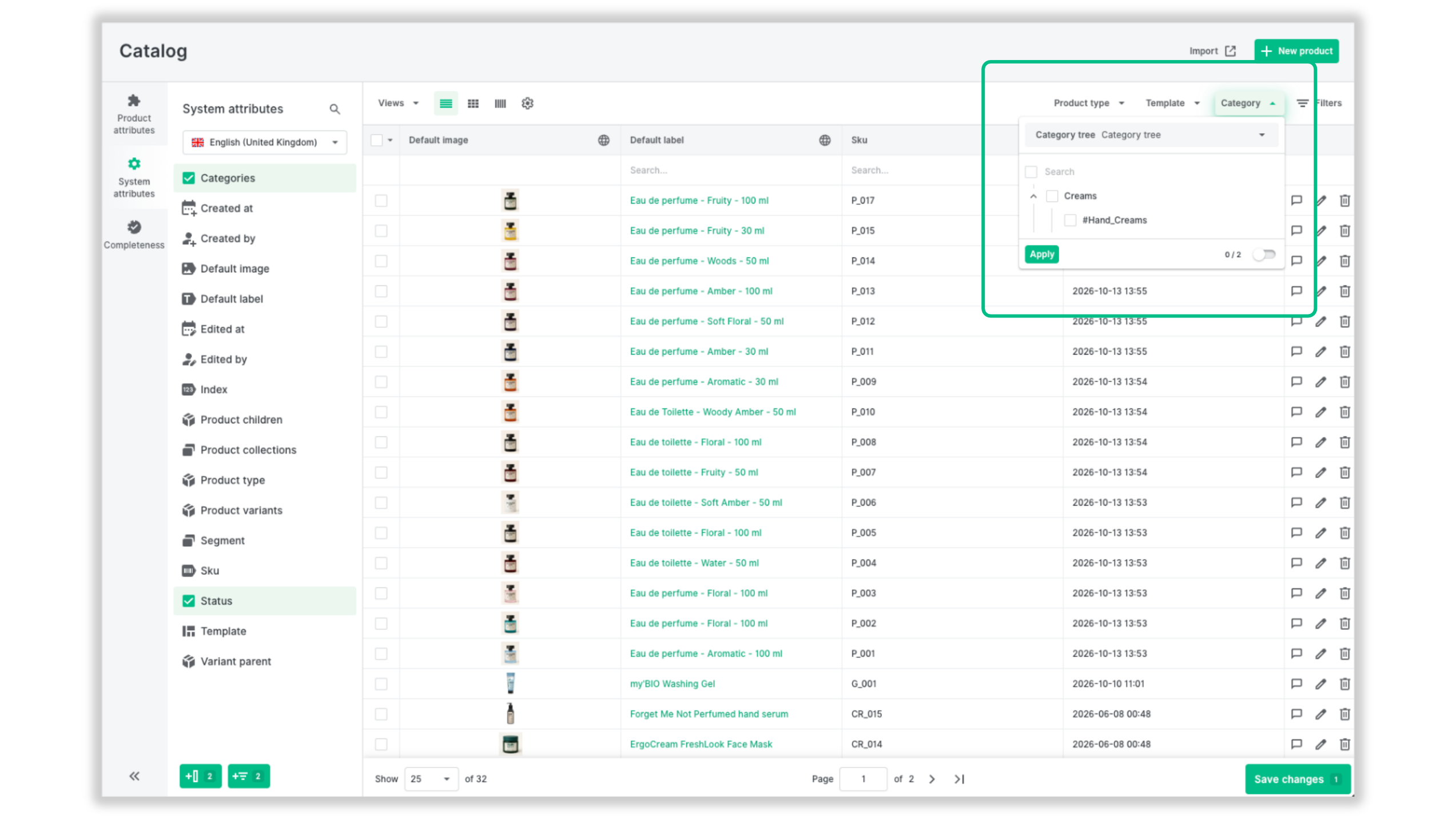
And when you create a new subcategory in your catalog, assigning products to it is now quicker and can be done in the same place where you edit product attributes.
The Actions menu and separately grouped AI actions
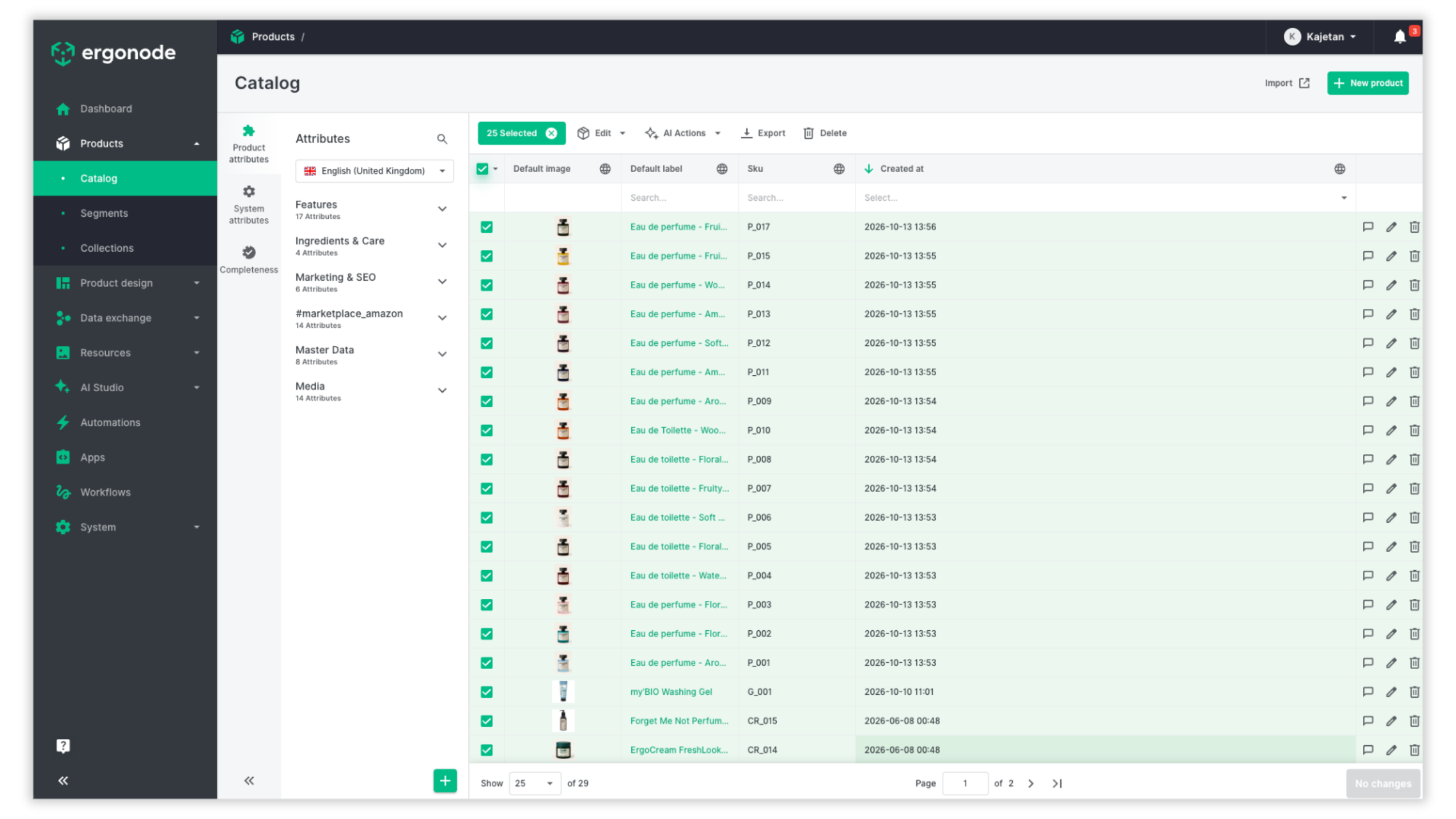
The Actions menu organizes the operations available when working with products into separate sections:
- Edit — edit product attributes, categories, collections, media names, templates, and statuses.
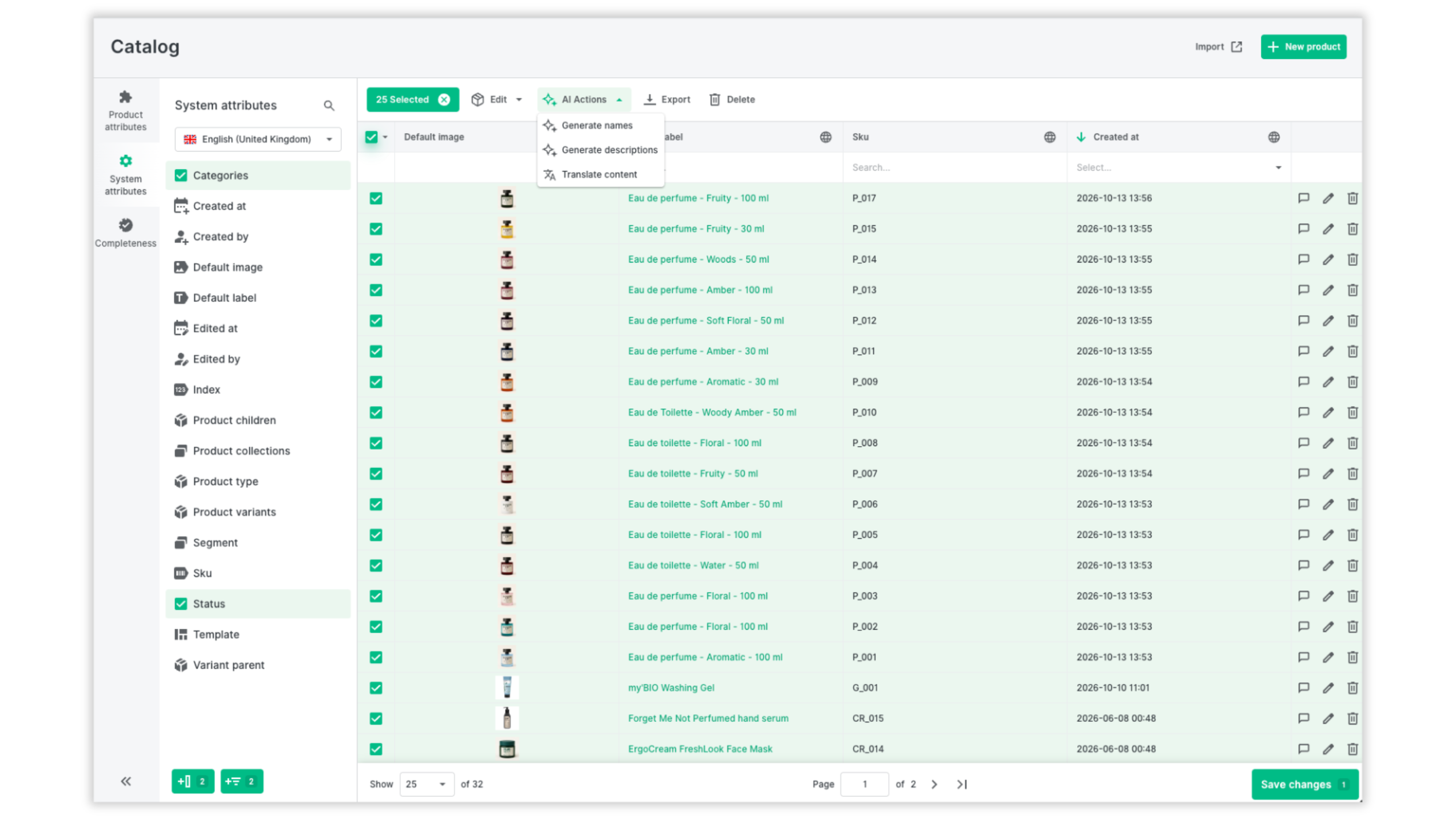
- AI Actions — actions that use AI.
- Export — export selected products.
- Delete — delete selected products.
The sections displayed depend on whether any products have been selected in the table. The screenshot below illustrates how this works.
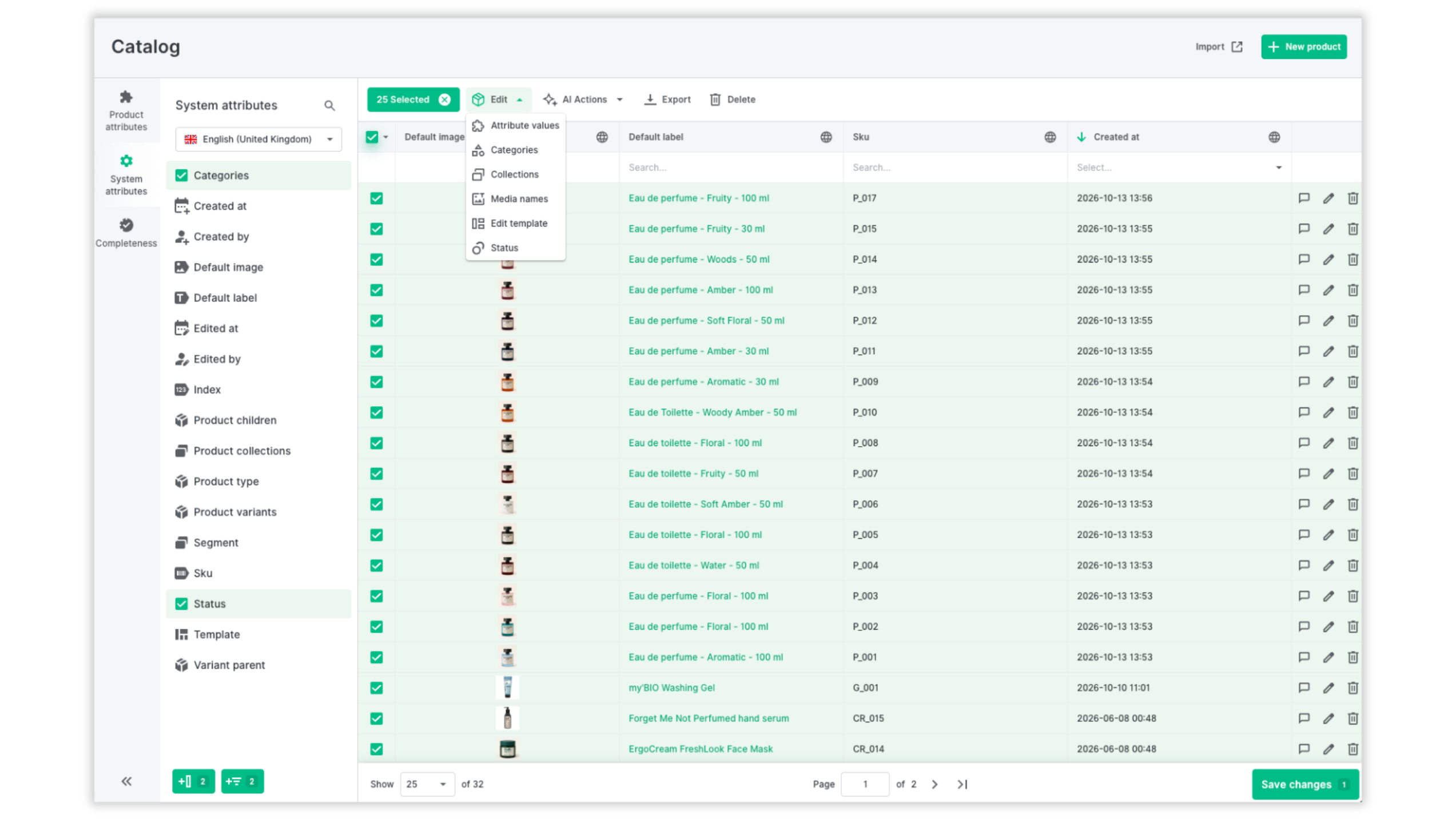
As you can see, AI-powered actions are grouped separately, making them easier to distinguish from other operations. This is primarily a navigation improvement that helps you find the right action for the task at hand.
A more readable table and easier editing
We've also made several improvements to the table itself:
- More space within cells, making values easier to read.
- Clearer separators between columns.
- Hover highlighting to help you identify the element you're working with.
- Easier column resizing.
- The ability to cancel an edit by pressing Esc.
These may seem like small changes, but when you're working with a large catalog every day, they make information easier to find and help reduce accidental edits.
The same improvements — the redesigned side panel, filters, and enhanced table view — are also available in the Media Library.
3. More options for saved views
Not every task requires you to work with the entire catalog. Sometimes you need a list of products missing translations into a particular language; at other times, you need records assigned to a specific category or products that require an update.
Saved views let you preserve these configurations and return to them whenever you need them.
We've improved how Views work in this release:
- The active view is always visible. Its name remains displayed, so you can easily see which view you're using.
- Restore a previous configuration. After making changes, you can restore the last saved version of a particular view.
- Overwrite an existing view. If you have the necessary permissions, you can save your current configuration over an existing view, whether private or shared.
- See when a view has changed. You'll be notified when a view is modified or overwritten by someone on your team.
- Return to the default catalog view. Switch back to the default configuration whenever you need to.
These improvements make it easier to maintain your preferred workflow without having to recreate the same filters and columns every time.
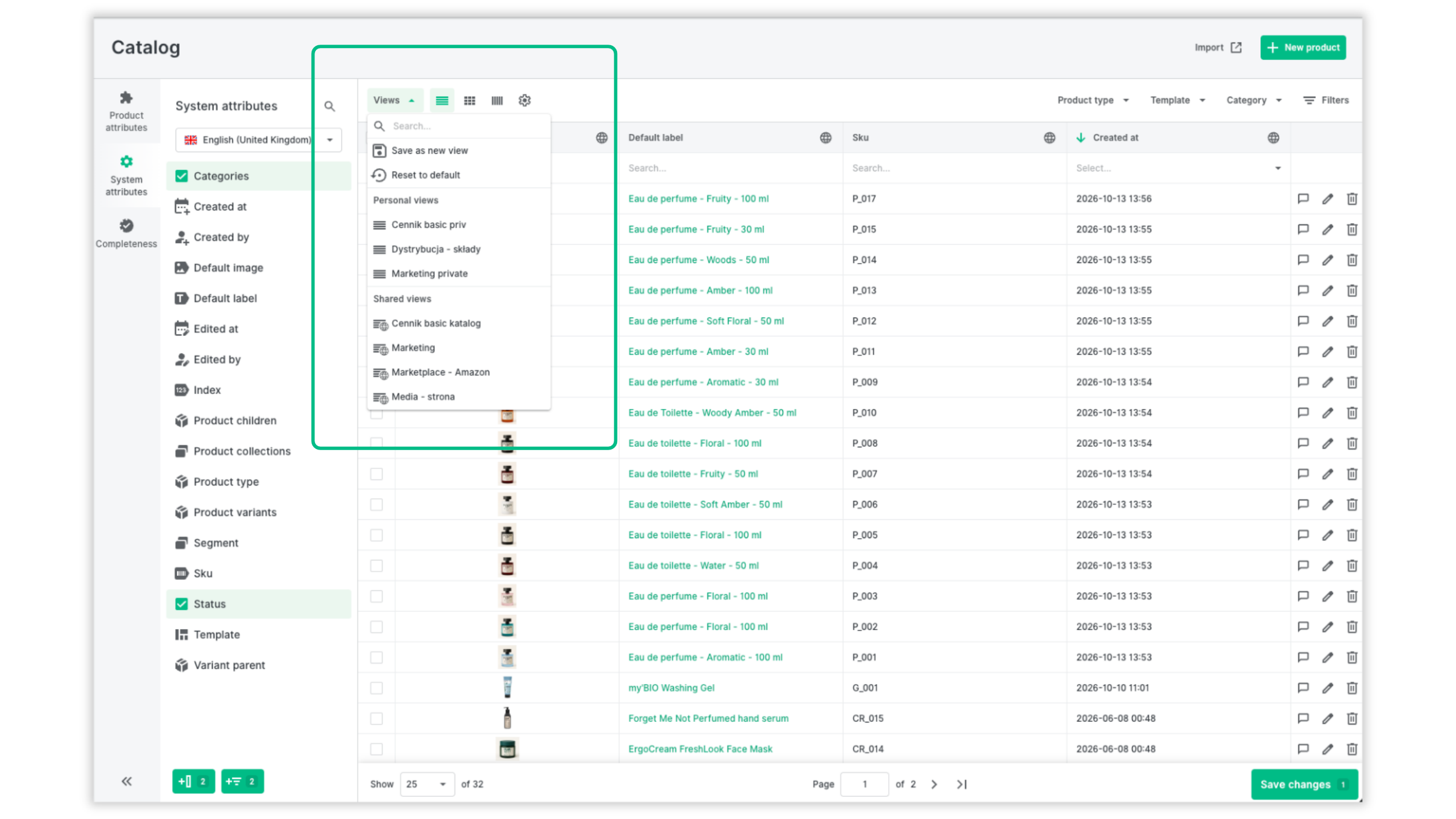
Your colleagues can also use shared views. If they need to make adjustments for their own work, they can create a separate private view without changing the shared configuration.
Example: A view for checking translations
If you regularly check products for missing German descriptions, you can save a view called “Missing DE translations.” The next time you review translations, you won't need to rebuild the configuration from scratch.
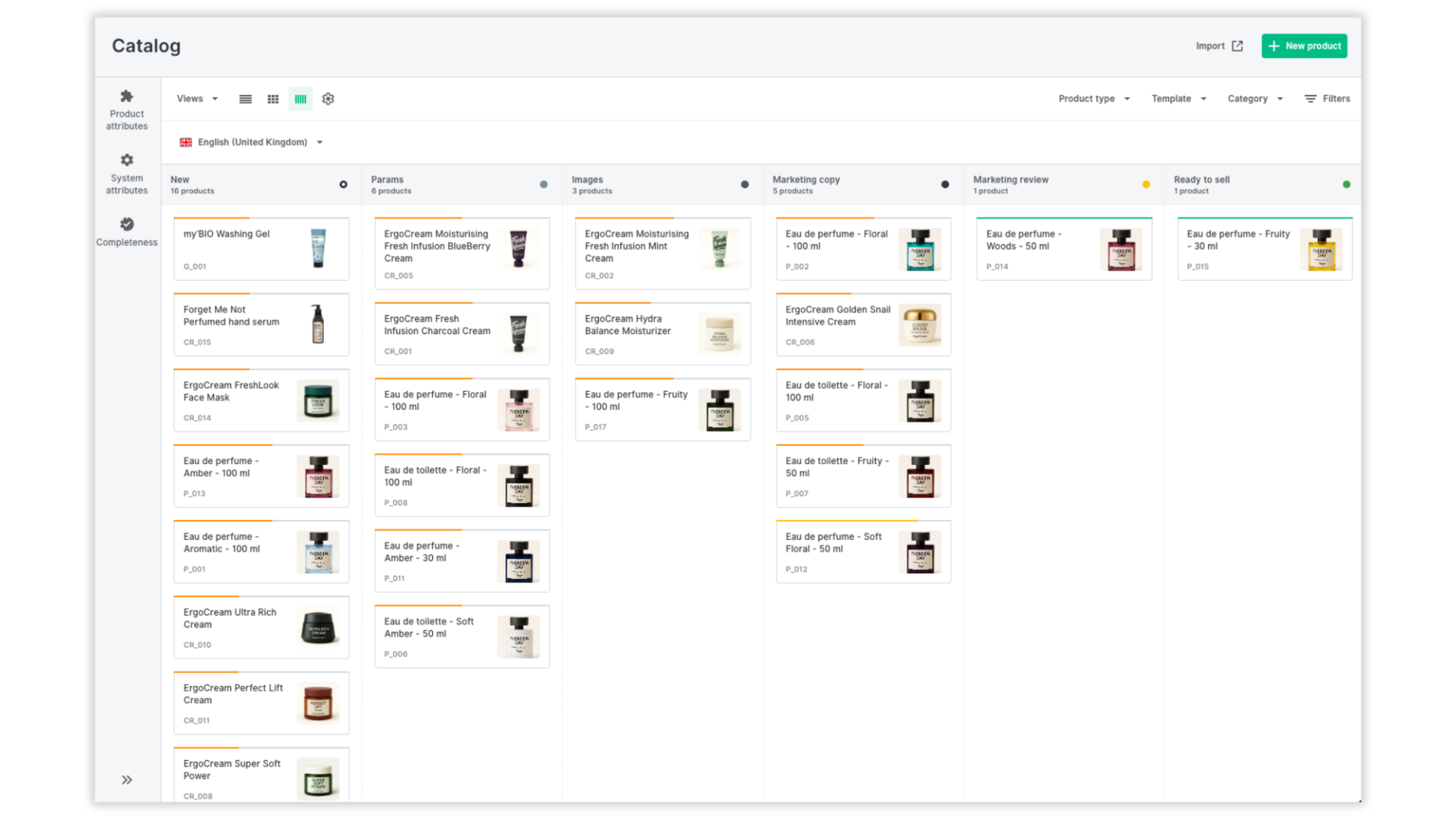
4. Workflow view (Kanban): A clearer overview of product statuses
We've improved the workflow view to make it easier to understand product statuses and track progress. There are two practical changes.
First, the columns now use the full width of the screen, making the board easier to read. While this may seem like a purely visual adjustment, it responds to feedback from organizations that use workflows with many stages.
Second, the workflow view now displays only the statuses that belong to the workflow for the selected language.
This is particularly useful for organizations selling in multiple markets, where publication processes and workflow stages may differ between languages. Showing only the relevant statuses makes it easier to focus on the work at hand.
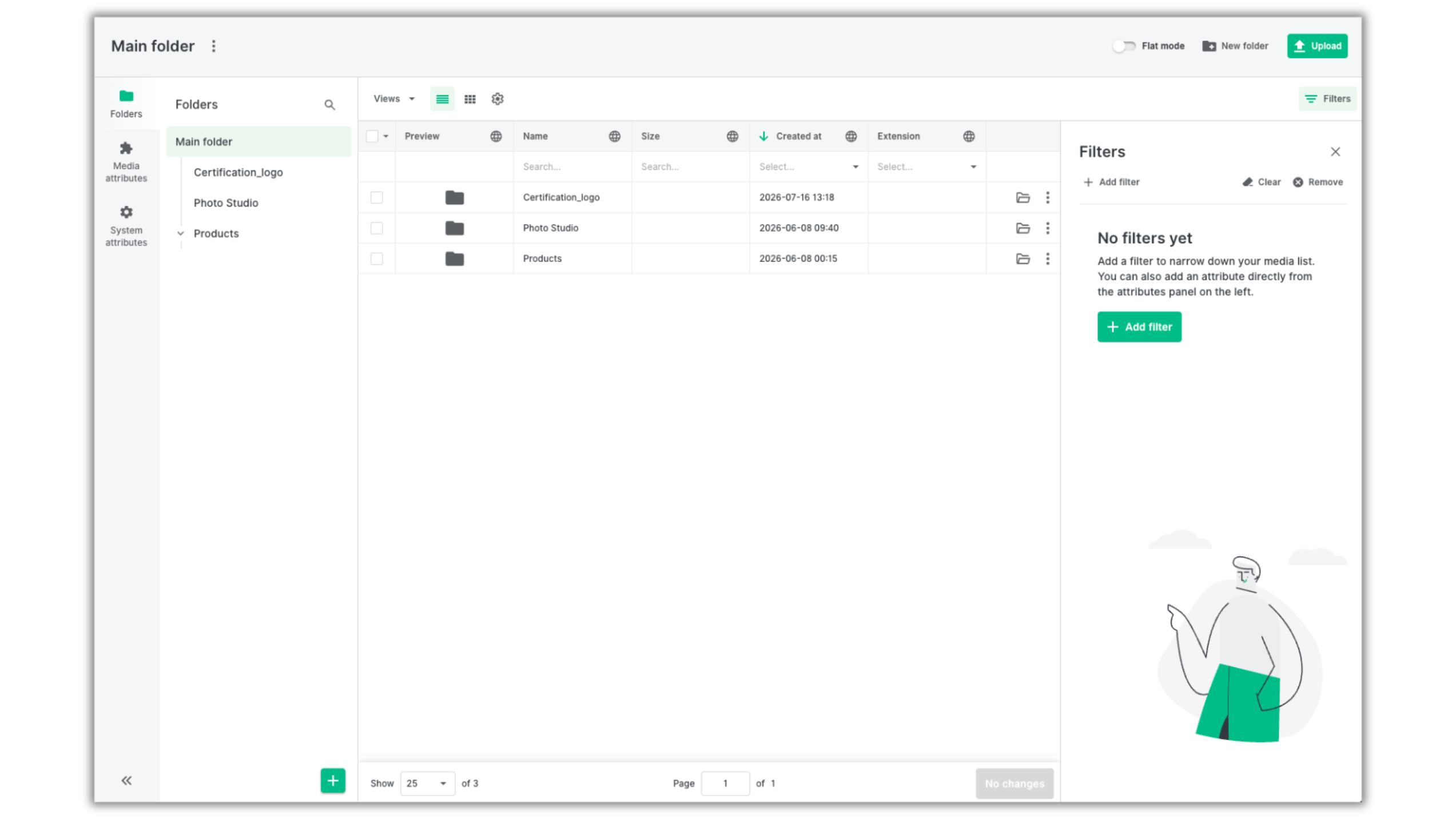
5. New filtering and table editing options in the Media Library
Product data isn't just about attributes and descriptions. For many teams, managing images, graphics, and other assets used across sales channels is just as important.
This release introduces changes that make it easier to find and upload files, as well as work with their attributes.
More ways to filter media
The enhanced filtering options described above are also available in the DAM module. You can narrow down your asset library more precisely and find files that match specific criteria faster.
This is particularly useful for catalogs where the number of images and other assets grows alongside the number of products, languages, and publishing channels.
As with the table view, keep in mind that the available operators depend on the media attribute type.
Edit media attributes directly from the product card
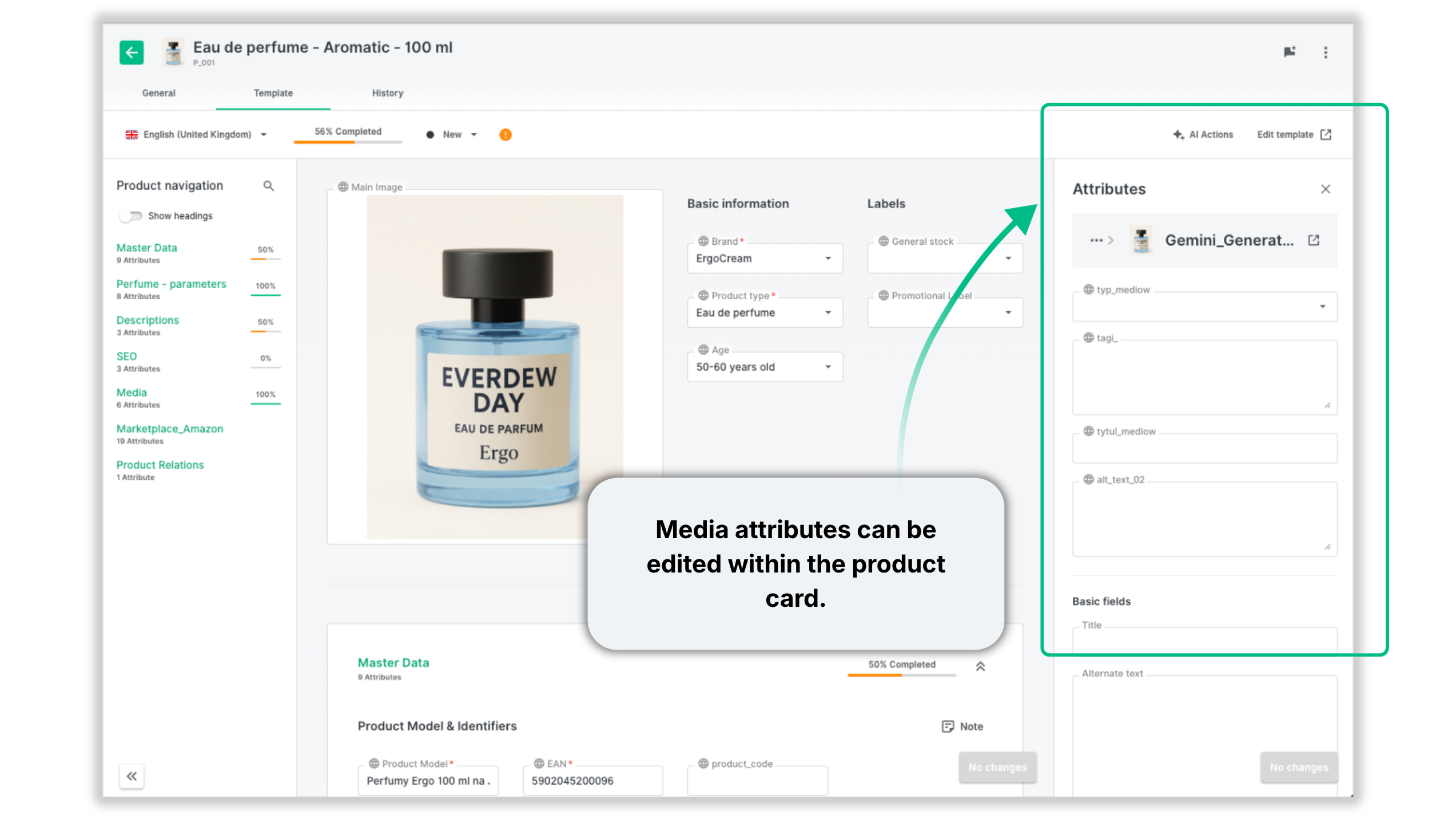
One important improvement is the ability to edit media attributes directly from the product card.
You no longer need to navigate to a separate library view to update information about an asset. You can edit media attributes — such as alt text or copyright expiration dates — directly from the product editing view, using a convenient side panel that doesn't obscure the main product data.
Copying information from a product into its media attributes is also faster and easier than before.
We've also moved the file's Properties and Relations into the same side panel. To access them, hover over an image, click the three-dot menu, and select the relevant file action.
Upload files faster
We've also improved how you add files to Ergonode. You can upload new assets — including images, PDFs, and other files — directly from your computer by dragging and dropping them into the Media Library table.
It's a familiar interaction that makes adding assets more straightforward.
There's also a new option to confirm and assign all newly uploaded files in a single step. When adding files directly from the product card or using the Upload button in the top right corner of the pop-up window, you can utilize the Add resources button (comes with a counter of items) to assign multiple uploaded files with one click.
6. AI in Ergonode: More capabilities and improvements to existing features
As AI capabilities evolve, it's not just about the tasks you can automate. It's also about how easily you can adapt these features to your specific needs.
This release introduces several improvements to existing AI features. They may not be revolutionary on their own, but they make everyday work more efficient.
More context for AI Photo Studio
The first improvement makes AI Photo Studio more effective by allowing you to use image and gallery attributes when configuring a scene.
This means the AI can draw on additional context from your product data when generating images, helping it produce results that better match your requirements.

Example: Maintain the look and feel of a previous photoshoot
Suppose you want newly generated images to match the style of an earlier photoshoot. By using images from the existing gallery, you can give the AI model more context about the visual style you're aiming for.
If your goal is to maintain a consistent mood and aesthetic across your assets, this additional context can help you achieve better results.
Please note: When using an image gallery, a maximum of the first three images are sent to the model.
New OpenAI models
Ergonode now supports the new OpenAI models GPT-6 Sol and GPT-6 Luna. They provide additional options when working with AI-powered tasks.
More options in AI Complete
The limit in AI Complete is 1,000 options per attribute, as opposed to 1,000 per action. This makes it easier to work with attributes that have extensive lists of available values.
7. Automations: Run processes when you need them
Automations help reduce repetitive tasks and keep product data processes consistent.
This update may technically introduce just one new button, but in practice it gives you much greater control.
The new Run now option lets you trigger an automation manually whenever you need it, without waiting for a product update to trigger the rule. You'll find it in the automation list and in the side panel when creating or editing an automation.
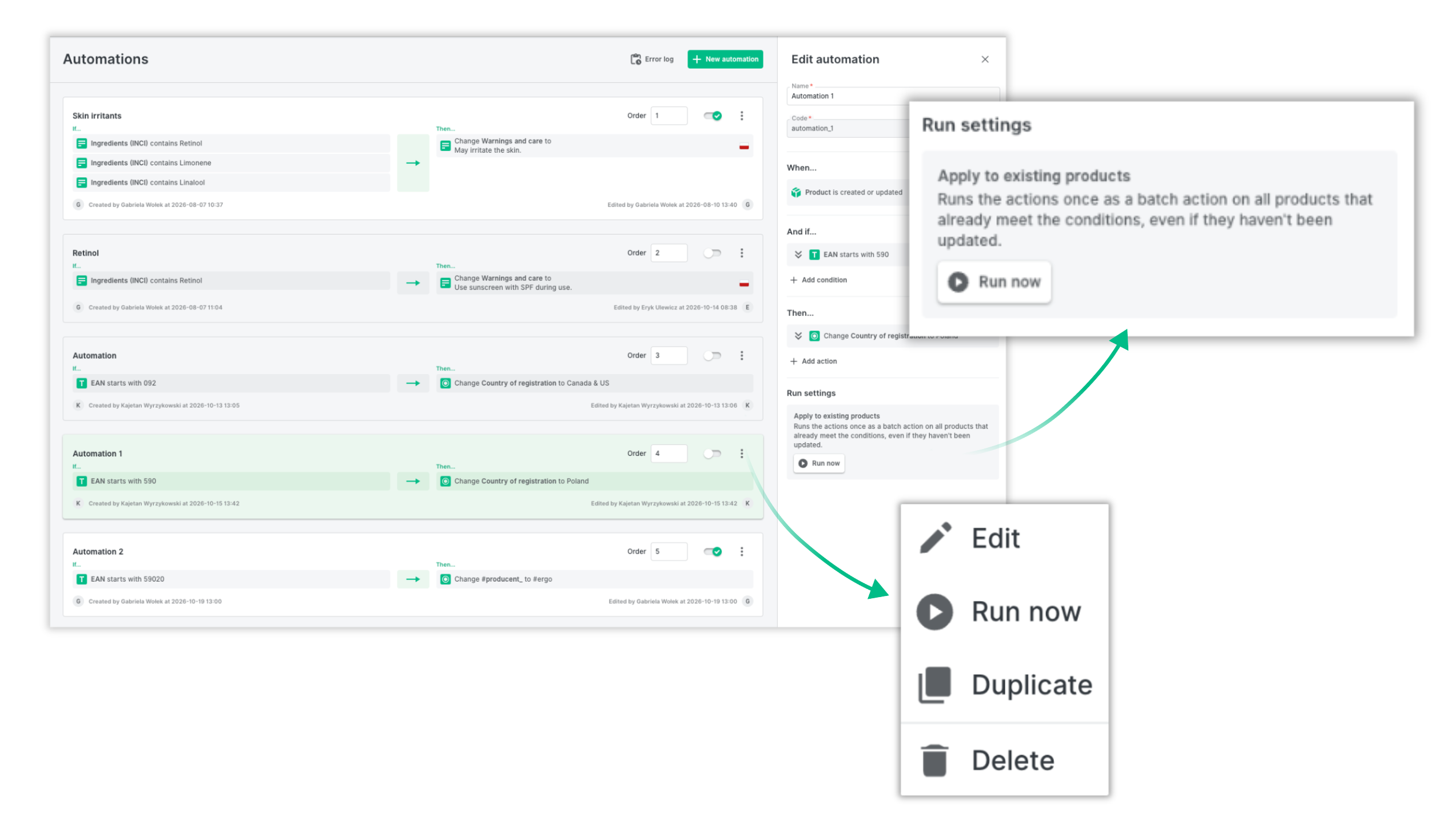
What does this mean in practice? When you create a new automation, you can apply its effects to existing products in your catalog immediately. There's no need to wait for an automatic trigger, such as “product created or updated,” to run the action.
8. Other improvements
The Autumn Release also includes several additional changes that support everyday catalog management.
Filter products through the API
We've added the ability to filter products through the API, providing greater flexibility for integrations and retrieving specific sets of data.
Import directly from the catalog
The new Import button in the catalog view opens the Product Importer in a new tab. You can move straight to importing data without having to find the relevant section manually.
What do these changes mean for your team?
Individual improvements matter, but their greatest value becomes clear in everyday workflows.
Advanced filtering, direct editing in the catalog, saved views, and a more convenient way to work with media all help reduce the number of steps needed to complete common tasks.
In practice, you can:
- Find products that need attention faster by combining conditions and using more precise operators.
- Update your catalog more efficiently by editing selected data without opening every product individually.
- Check data completeness more easily by creating views for products that need information added or validated.
- Maintain consistent workflows by saving filter and column configurations for recurring tasks.
- Spend less time switching between screens by editing media attributes directly from the product card.
- Organize team workflows more effectively with a clearer workflow view and the ability to run automations manually.
All these improvements support one goal: making product data management more organized and less time-consuming, even as your catalog grows and your processes become more complex.
What's next?
The Autumn Release is another step in the ongoing development of Ergonode. We're also working on new features designed to further improve data management and automation.
Here's what's in the pipeline:
- Watermarks for AI-generated content — an additional way to identify assets created using artificial intelligence.
- Attribute inheritance for product variants — a simpler way to manage shared data across related product variants.
- Custom fields preview on the product card — a full-screen table accessible through Browse options, making it easier to review options and their associated custom field values.
Our goal is to make Ergonode a practical visual editor built around your data model — a place where you can not only store product information, but also manage it efficiently, maintain data quality, and prepare it for use across different channels.
Explore the latest Ergonode features and see how you can put them to work in your catalog.
As a reminder, you can also explore our guides and articles covering previous releases: