Ergonode How-To: Making the Most Out of Batch Actions For Product Attributes
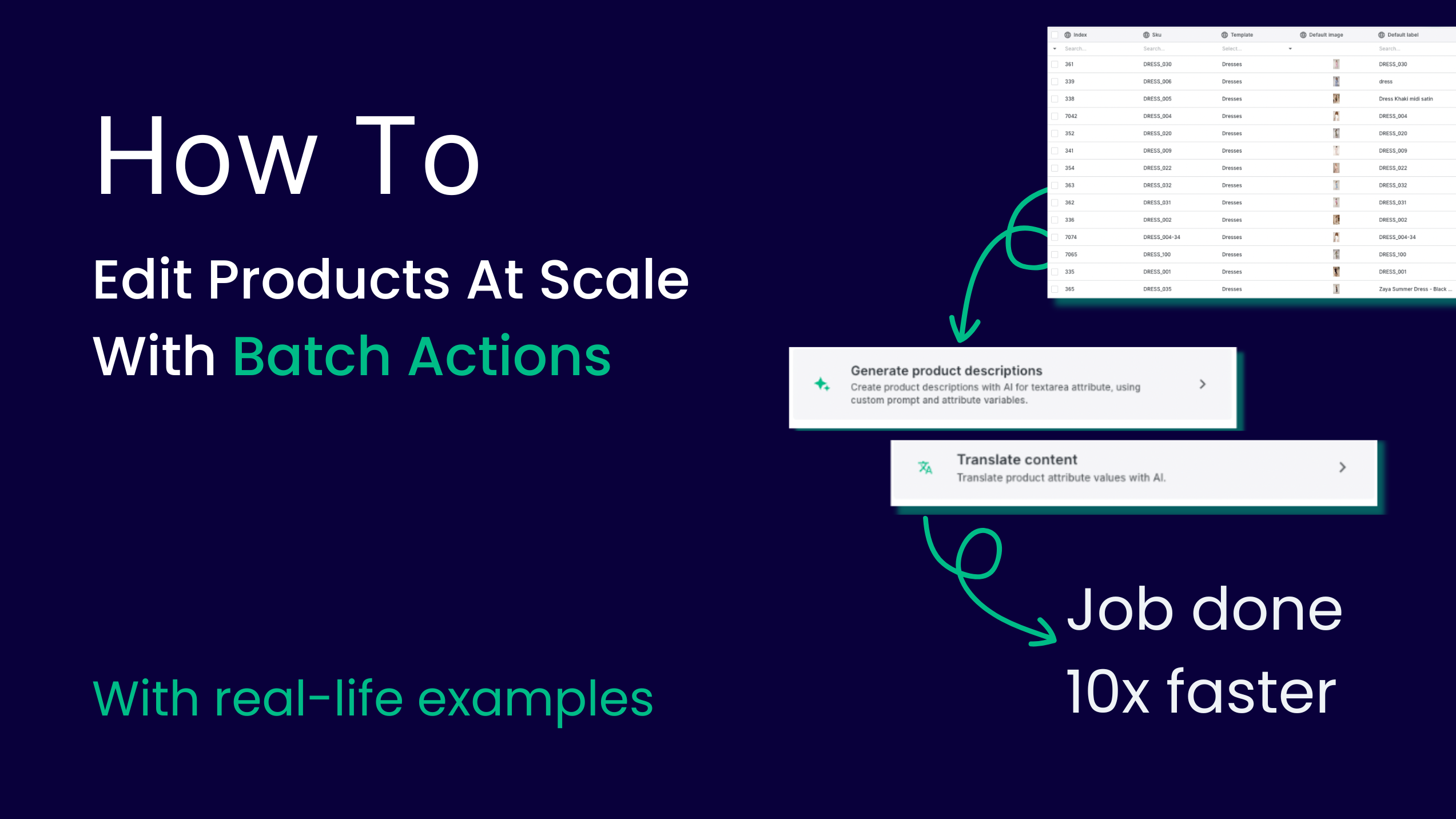
Do you know the pop-culture saying that “not all heroes wear capes”? That’s a fitting description of batch actions in Ergonode PIM. These powerful functionalities, performed on multiple products, attributes (and soon media files, too) at once, help you edit attributes, generate and localize content, and deliver products to market much faster.
In the Ergonode How-To article series, we explain the ins and outs of selected Ergonode PIM features. Not necessarily brand new ones — but definitely those that make everyday work significantly easier. Many of these topics also come directly from questions and feedback shared by our clients.
Without further ado, let’s dive in.
What are batch actions?
Batch actions (sometimes called mass actions by our clients) are functions that allow you to edit product information in bulk — instead of updating each product individually. In short, they help you work with large product catalogs much more efficiently.
One of their key advantages is that batch actions run in the background. You can continue working on your catalog while Ergonode PIM localizes content, generates descriptions, adds prefixes or suffixes, or updates attributes across hundreds or thousands of products.
Types of batch actions in Ergonode PIM
In this guide, we focus on eight batch actions related specifically to attribute editing:
- Generating product descriptions
- Generating product names
- Translating content
- Changing values
- Adding prefixes and suffixes
- Adding values
- Removing values
- Clearing values
Below, we explain each action and show how it helps solve real-life problems you may encounter in daily product data management.
Generating product descriptions
When working with large volumes of products — and limited time — it’s tempting to take shortcuts.
However, data clearly shows that online shoppers carefully analyze product pages. If a description is vague, error-prone, or poorly written, it discourages customers and lowers conversion rates.
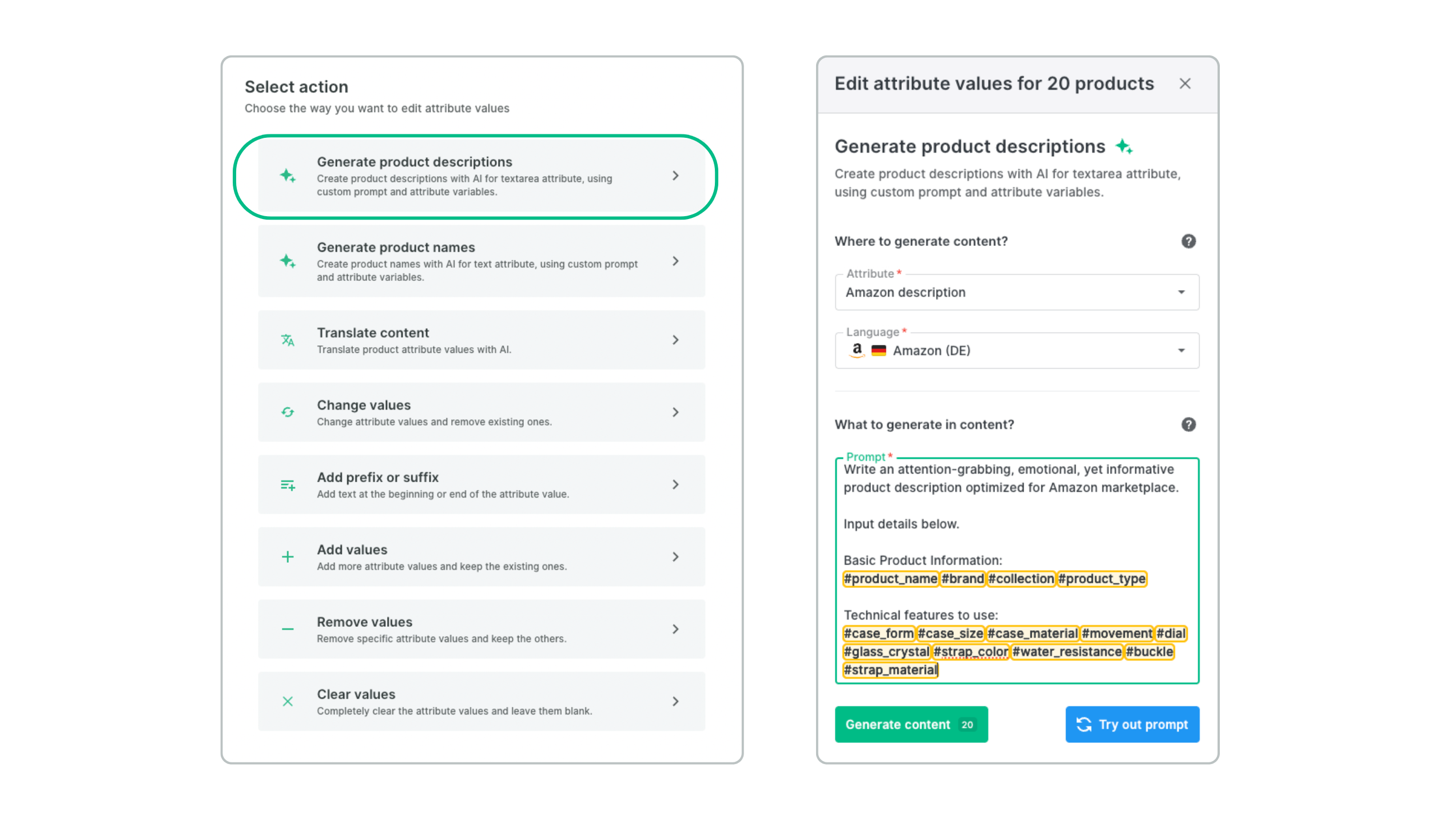
This is where Generating product descriptions comes in. The process consists of three simple steps:
- Select the attribute where the generated description should be saved
- Choose the language
- Write the prompt that defines how the description should be generated
A quick note on prompts: they can reference specific product attributes that should be included in the generated content. In the example below, the prompt defines the tone of voice (“attention-grabbing, emotional yet informative”), the destination (“for Amazon marketplace”), and relevant attributes (basic inputs and technical features). This ensures descriptions stay aligned with your requirements and can be generated at scale — without losing consistency or quality.
If you struggle with writing prompts, we’ve prepared a set of ready-to-use templates in our e-book. It’s free and packed with practical tips.
Real-life example:
Industry: Watches
Use case: You are launching a new collection of 200 watches. Each product has technical attributes filled in, regarding the straps, the dials, and the cases.
Action: You generate unique marketing descriptions for each variant, using attribute variables in the AI prompt so the copy sounds natural, e.g.:
“Experience the elegance of Massimo’s flagship Dreams model, with leather strap, semi-automatic dial and quartz…”
Generate product names
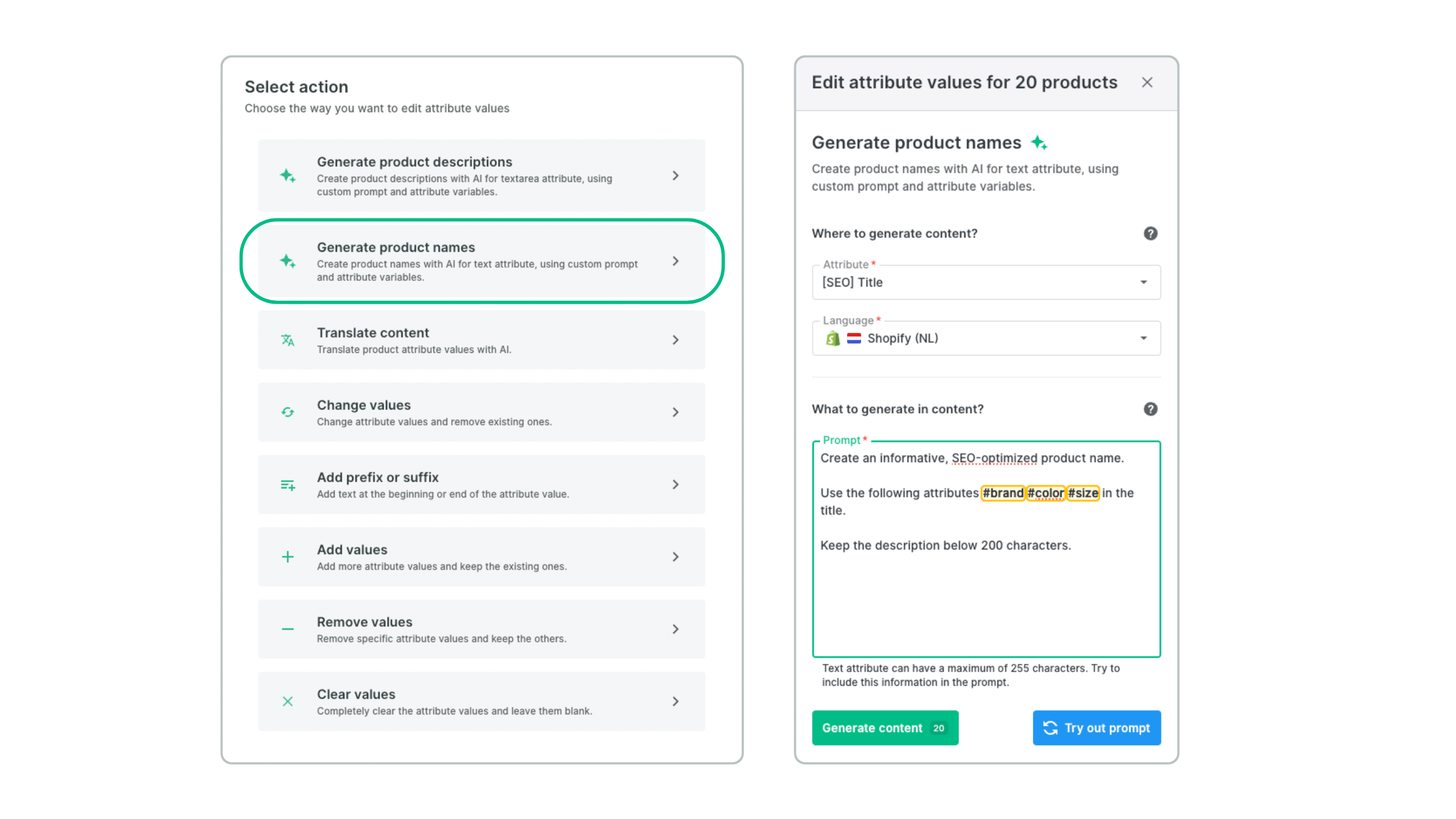
Similarly to the previous example, this batch action lets you create structured product names without writing them one by one. Instead, you define a naming pattern that will be applied automatically.
Example: Your marketing team needs SEO-friendly product names that include characteristics used by search engines or AI-powered search — such as color, size, configuration, brand, or collection. This batch action automates the process.
Here’s how it works:
- In the attribute field, select where the generated name should be saved (e.g. “SEO Product Name”)
- Choose the language
- Write your prompt
When writing the prompt, you can also define the exact structure of the name and set a character limit. This is crucial for marketplaces with strict requirements — for example, Amazon allows a maximum of 200 characters for most product categories. This means no more issues with product names and delays in publishing new items.
Real-life example:
Industry: Fashion / Apparel
Use case: Your ERP contains raw product data where the name is just a model code, e.g. “TV-XR-55”. For SEO purposes, you need full product names.
Action: You bulk-generate names based on a defined pattern.
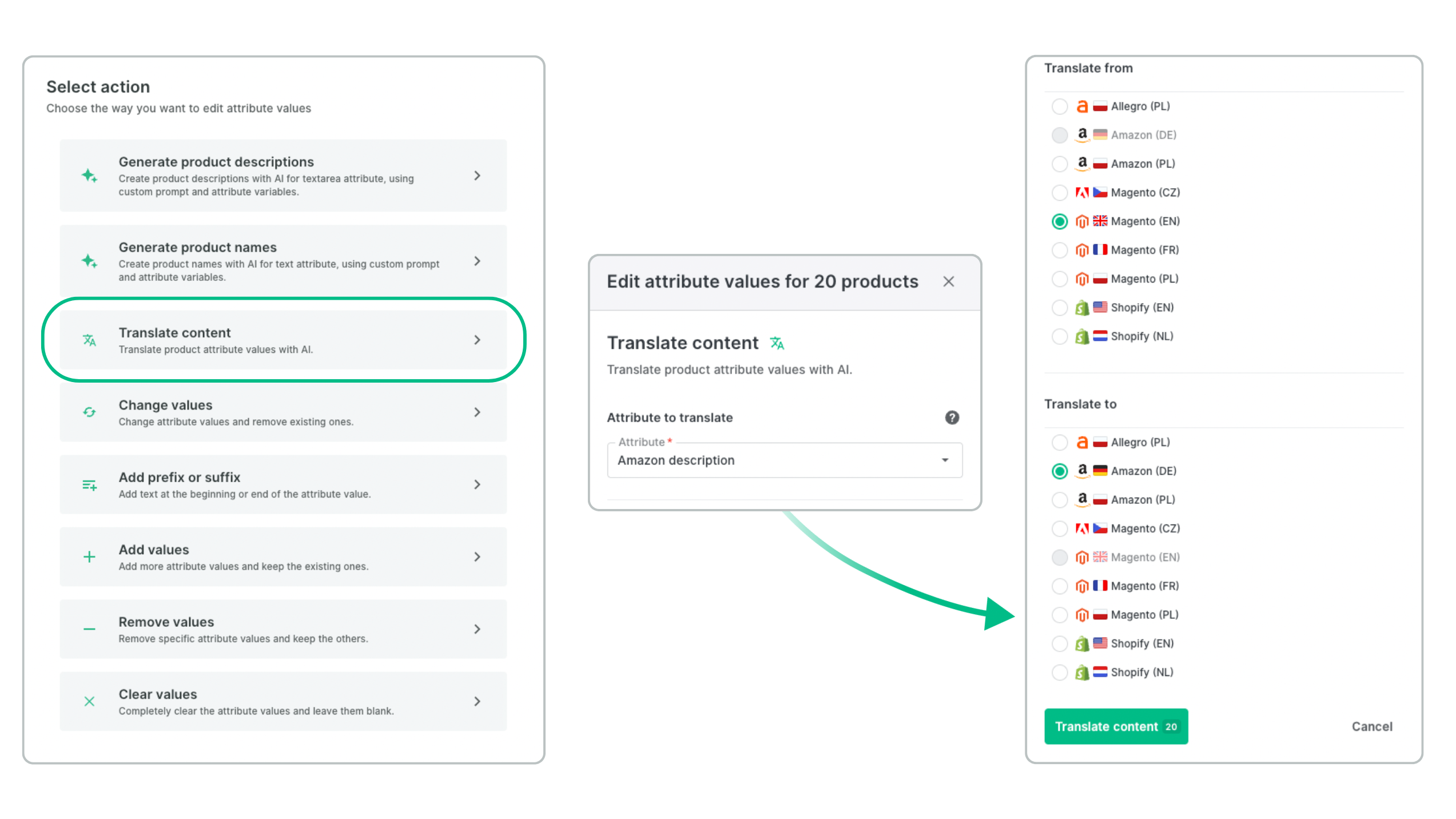
Translate content
Localizing product content is essential — and notoriously time-consuming. Fortunately, Ergonode PIM automates this as well.
With the Translate content batch action, you can select an existing language version of any attribute and translate it across hundreds or thousands of products in one go.
Supposing you’re entering the German market with a catalog of 10,000 SKUs. Instead of translating everything manually (or semi-automatically), you select the relevant attributes and generate ready-to-publish content in less than a day. Here’s a full overview of the mini use-case.
Real-life example:
Industry: Home & Decor (Furniture and decorations)
Use case: A British furniture manufacturer is entering the German market (Amazon.de / Kaufland.de).
Action: You bulk-translate descriptions of 2,000 chairs and tables from English into German within minutes, while preserving HTML formatting. This enables a fast go-live on a new market (shorter time-to-market).
Change values
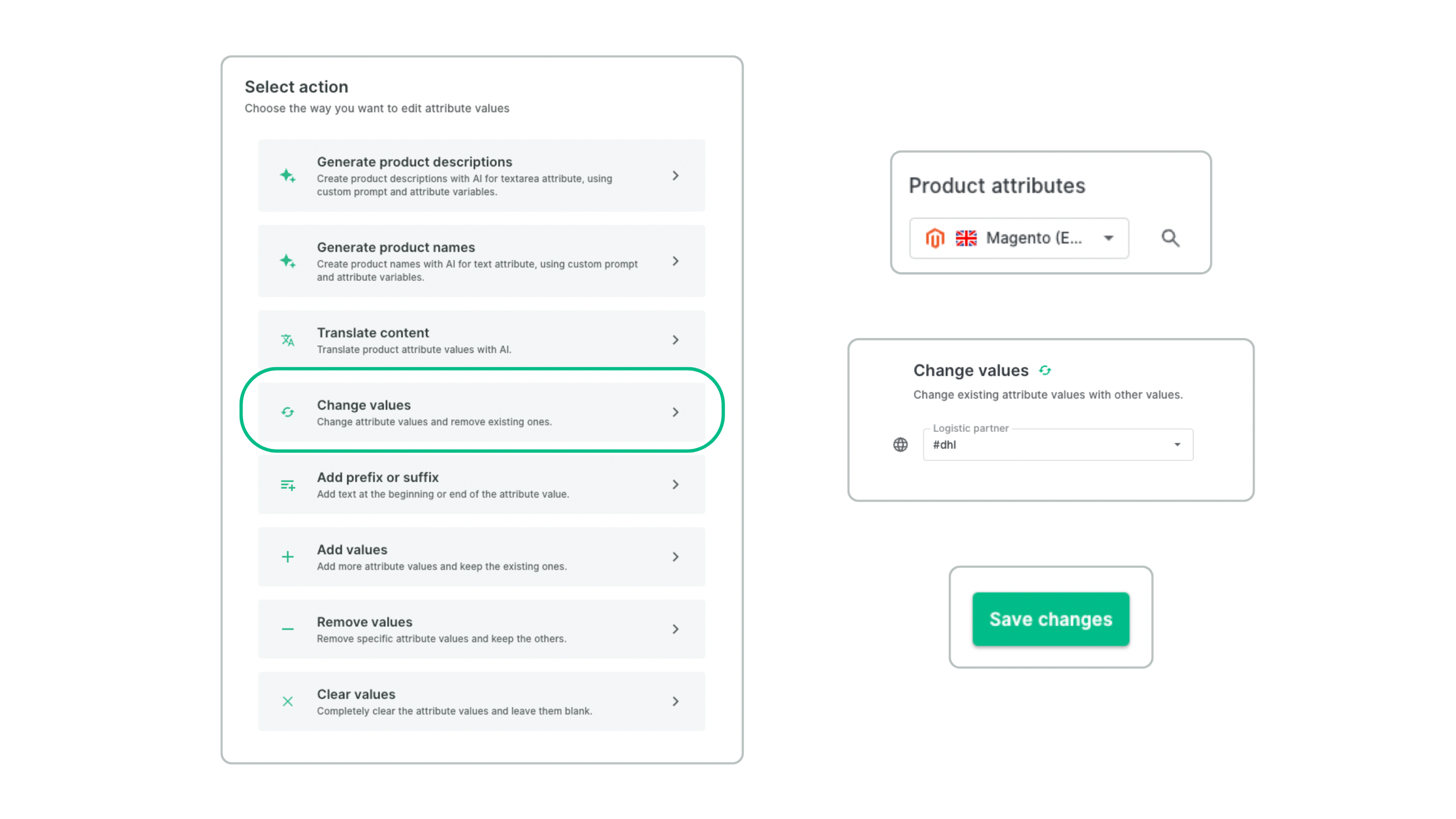
Switching a delivery provider? Updating technical information across half of your catalog?
Without batch actions, this could take days. The Change values function allows you to update any attribute value across a large number of products at once — quickly and safely.
Real-life example:
Industry: Logistics / Automotive parts
Use case: You are changing the logistics provider for the entire “Small spare parts” category (e.g. filters, seals).
Action: You select 5,000 products and change the value of the “Default courier” attribute from “DPD” to “InPost”. Manually, this would take two days — here, it takes 30 seconds.
Add a prefix or suffix
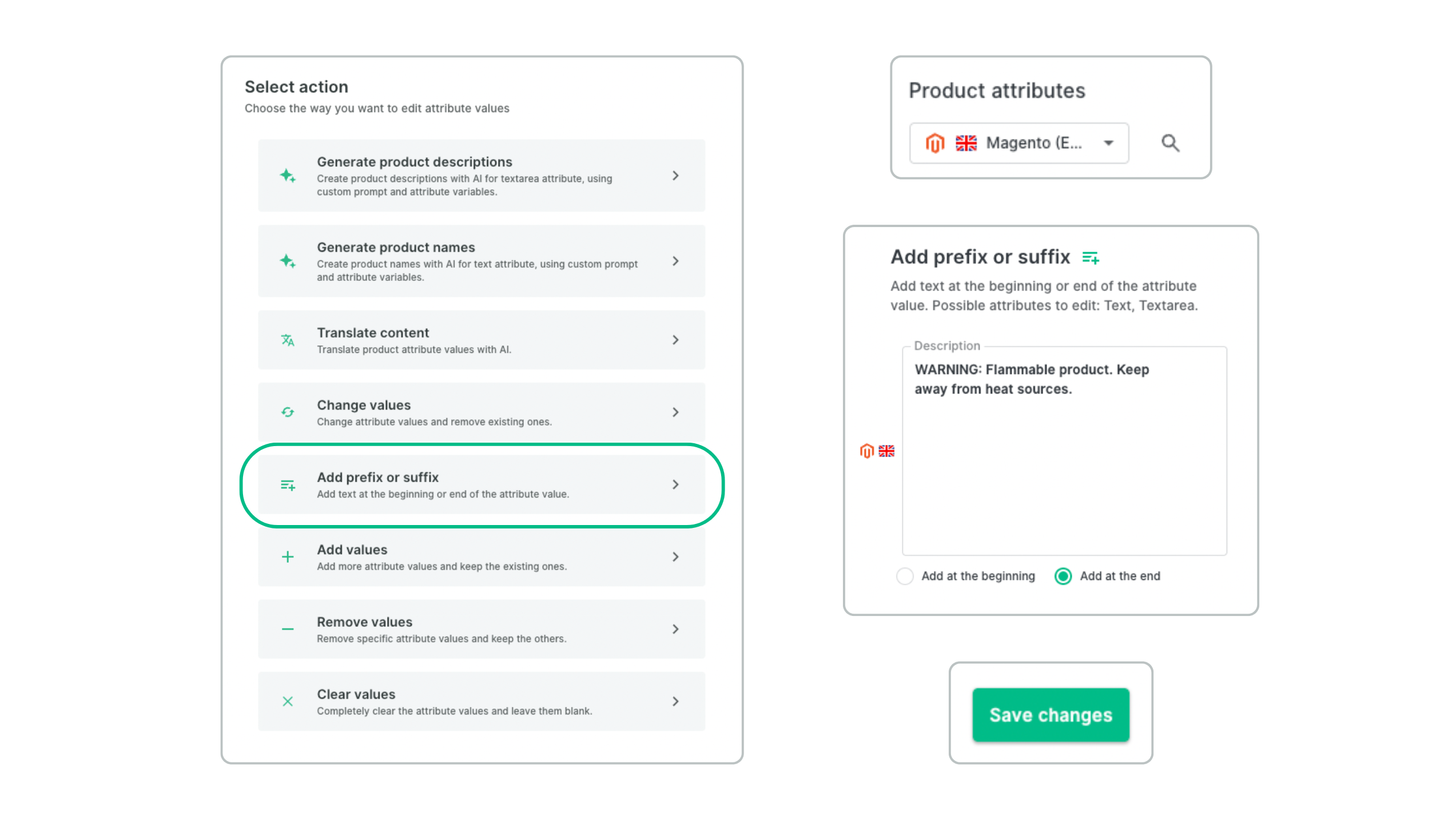
This is one of the most flexible batch actions, especially when changes need to happen fast and manual editing is not an option.
Prefixes and suffixes can be added to:
- Product names
(e.g. the SEO team updates titles to improve Google or AI search visibility) - Product descriptions
(e.g. customers struggle to find key information, so each description needs bullet points with essential features) - Attributes affected by legal changes
(e.g. a new EU regulation requires information about ingredient origin to be added)
Real-life example:
Industry: Household chemicals / Cosmetics
Use case: New legal regulations require a specific warning to be included in the description of every product containing alcohol.
Action: You select products from the “Perfumes” category and use the Suffix option to append the following text to the end of each description:
“WARNING: Flammable product. Keep away from heat sources.”
You don’t need to edit existing descriptions — you simply append the required legal statement.
Add values
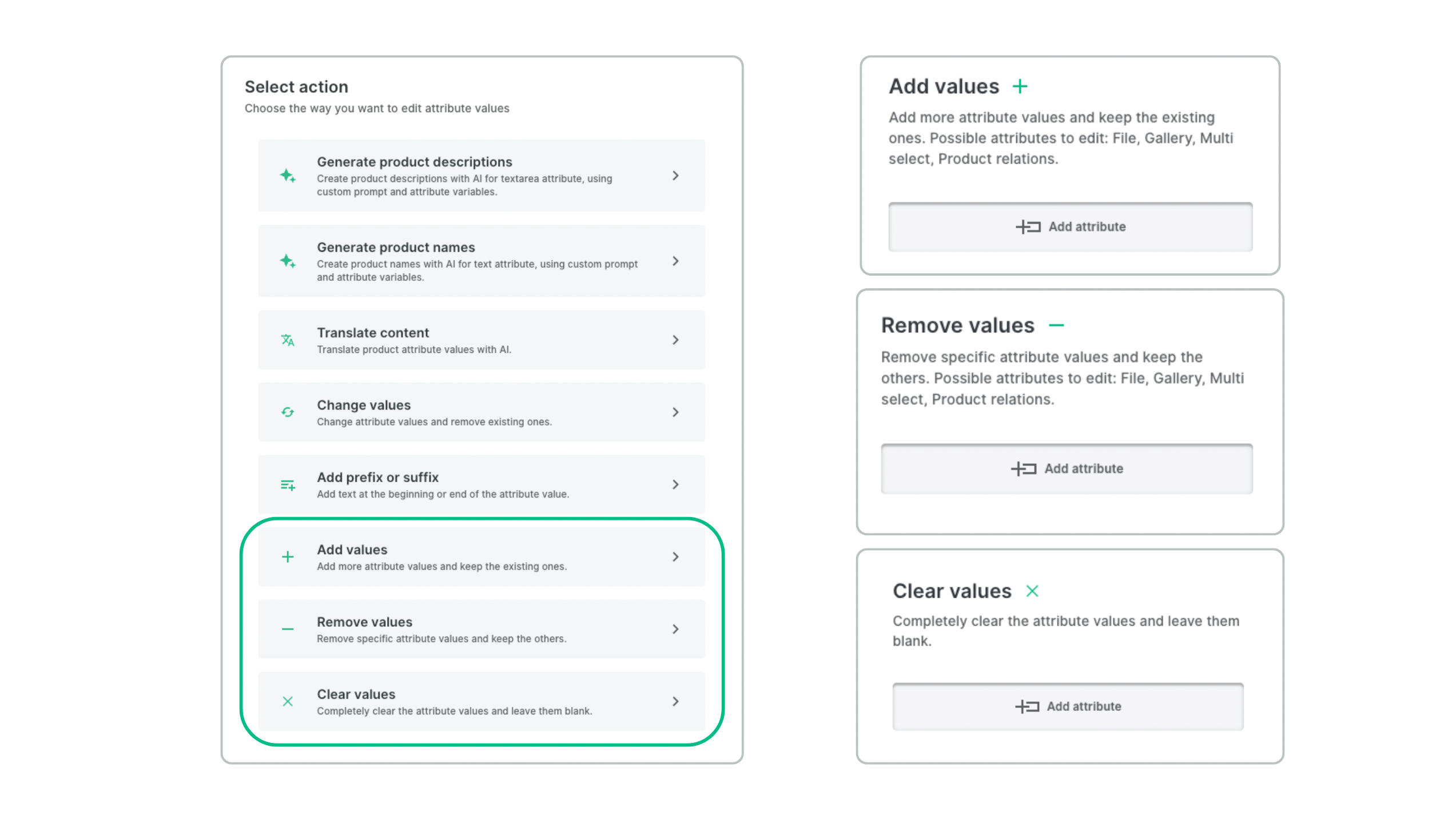
Imagine you want to temporarily highlight a promotion like Black Friday. Some products already have labels such as “Bestseller” or “Sale”, but you also want to add a “Black Friday” tag — without removing the existing ones.
That’s exactly what Add values is for. This batch action lets you add an additional value to a multiselect attribute across selected products.
Real-life example:
Industry: Sports & Outdoor
Use case: Black Friday is approaching. Your jackets already have marketing attributes such as “New” or “Waterproof”. You want to include them in the promotion without losing the existing information.
Action: You bulk-add the value “Black Friday Sale” to the “Special collections” attribute.
Result: The product now has the following tags: ["New", "Waterproof", "Black Friday Sale"]
Remove values
Black Friday is over, and it’s time to clean up your offer. With Remove values, this takes just minutes.
Simply select the attribute and remove the specific value that’s no longer needed — for example, the promotional label added earlier — while keeping all other values intact.
Real-life example:
Industry: Retail / Store chains (continuation of the previous example)
Use case: Black Friday is over. You need to remove the promotional tag while keeping all other tags intact.
Action: You bulk-remove only the value “Black Friday Sale” from the “Special collections” attribute.
Result: The product returns to: ["New", "Waterproof"]
All other tags remain untouched.
Clear values
Last but not least: Clear values. This action becomes essential when cleaning up your product catalog.
Example: You have an attribute describing an outdated emissions standard. All products already comply with the latest regulations, but the legacy data still appears in exports and causes confusion. With this batch action, you can completely clear the attribute values across your catalog and prepare it for archiving or full removal.
Other types of batch actions
This article focuses on attribute-related actions, but Ergonode PIM also supports batch actions for:
- editing categories and collections,
- updating media names,
- changing product templates,
- managing product status in the go-to-market process,
- in the section “Attributes”, where you can bulk edit and translate all attributes in your database,
- copying and translating select/multiselect attributes.
In the upcoming release, we will also enable batch actions for all media files.
You can learn more in the Ergonode PIM manual:
Benefits of batch actions in Ergonode PIM
Batch actions matter because they:
- speed up time-to-market with GenAI features such as content translation and generation,
- enable fast reactions to ad hoc opportunities like flash sales,
- reduce frustration when introducing new products or updating existing ones,
- run in the background, so large-scale updates don’t block your daily work.
Over to you
That’s a wrap — your batch action training is complete.
If you have further questions, check out our User Manual or get in touch with our team directly.
Happy bulk editing!