
Ergonode How-To: How to Create a Product Family Template in Ergonode PIM

Ergonode How-To: How to Create a Product Family Template in Ergonode PIM
Product data management starts in one place: the product page.
If its structure is unclear, inconsistent, or difficult to edit, problems escalate quickly — regardless of how much automation you have in your system.
In many PIM systems, creating product templates means dozens of clicks, rigid structures, and work that feels more technical than visual. Ergonode PIM takes a different approach. With the visual design tool (referred to as the Designer), you can easily create a product family template that truly reflects how product pages look in your sales channels.
The Designer allows you to recreate the layout of your existing product pages, making attribute completion far more intuitive and understandable for product teams.
In this article, we’ll walk you step by step through the process of creating a product family template in Ergonode PIM.
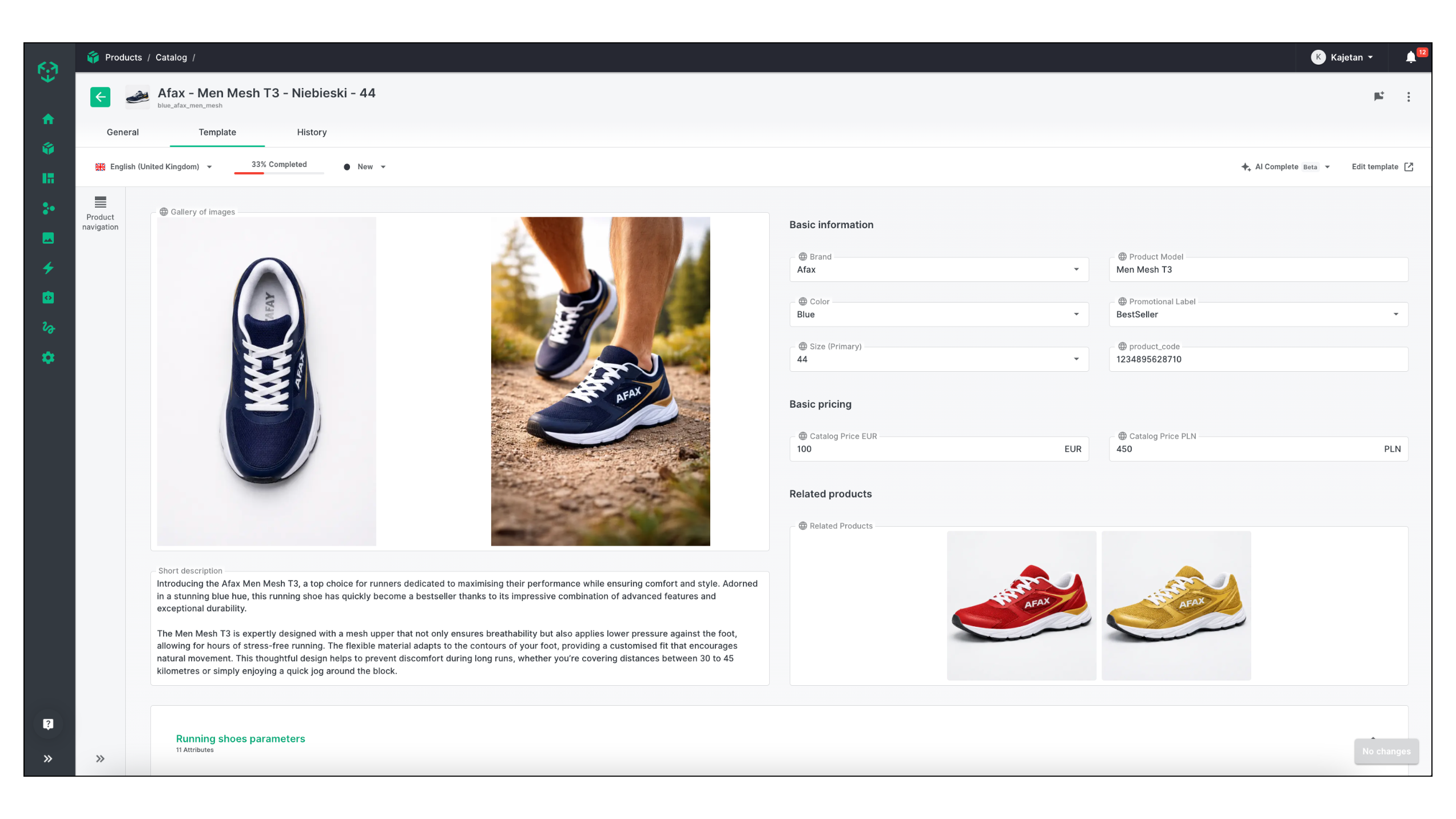
What a Completed Product Page Looks Like
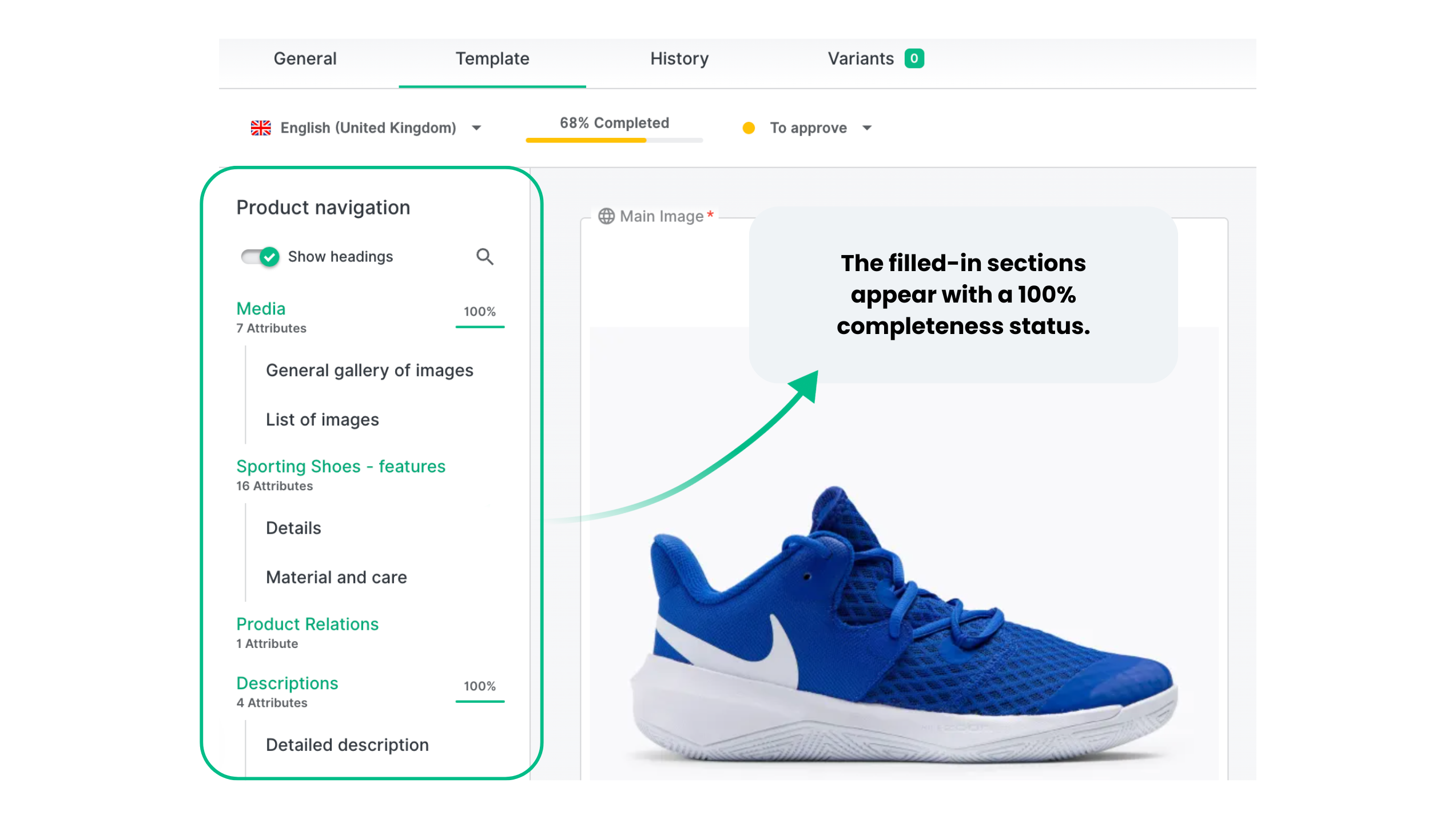
The image above shows a fragment of a completed product page for running shoes, with attributes already filled in. At first glance, two things stand out: clarity and information hierarchy.
Key data is easy to find, thematic sections are clearly separated, and the overall layout resembles a familiar e-commerce product page.
This structure is not accidental. It’s the result of a well-designed product family template that:
- organizes data already at the input stage,
- simplifies the work of product teams,
- ensures consistency across all sales channels.
Below, we’ll show how such a product page is created in Ergonode PIM — from selecting a template to fully designing it in the Designer. We’ll use running shoes as a concrete example throughout the article.
Why Product Family Templates Are the Foundation of Data Management
Not all products require the same information — and this is where many catalogs start to fall apart. When each product has a different page structure, data quickly becomes inconsistent, difficult to maintain, and prone to errors.
This is especially true when product data is stored in spreadsheets. Every new attribute means another column or row, and before long the file becomes bloated and nearly unusable.
Product family templates solve this problem at the source. They allow you to define:
- which information is required,
- in what order it appears,
- and how it is presented for a specific product type.
They also make work easier by visualizing the information architecture instead of hiding it behind technical configurations.
A good example comes from the fashion industry. Consider different product families such as:
- sports footwear,
- running shoes,
- trekking shoes.
All belong to the same category, yet they differ in key attributes. Running shoes require technical parameters like drop or cushioning, while trekking shoes need detailed waterproofing information.
The same applies to dresses, leggings, or blouses. Products may differ significantly, and forcing them into one oversized template filled with irrelevant attributes only complicates daily work.
With product family templates in Ergonode PIM:
- every product within a family has a consistent, predictable structure,
- teams work according to shared rules,
- data is ready for sales channels without additional cleanup.
That’s why designing product family templates is one of the first and most important steps in any PIM implementation — even before automation, exports, and integrations come into play.
Next, we’ll move to the practical part and show where templates are created in Ergonode PIM and how to start working with the Designer.
Product Template List in Ergonode PIM
To begin working with product family templates, go to Product Design → Product Templates. This section contains a list of all existing templates. If you’re just getting started with Ergonode PIM, this view will be empty.

In the list, you’ll see templates tailored to different product types. In our apparel demo, we’ve prepared templates for dresses, shoes, leggings, and blouses — each with its own product page structure adapted to the specific product family.
This view serves as your starting point:
- you can select an existing template and edit it,
- or create a new one tailored to your catalog’s needs.
Clicking on a template takes you to its details — and that’s where the actual product page design begins.
Designer – Where You Build the Product Page
After opening a selected template, you’re automatically taken to the Designer tab. An empty Designer template looks like the example below.
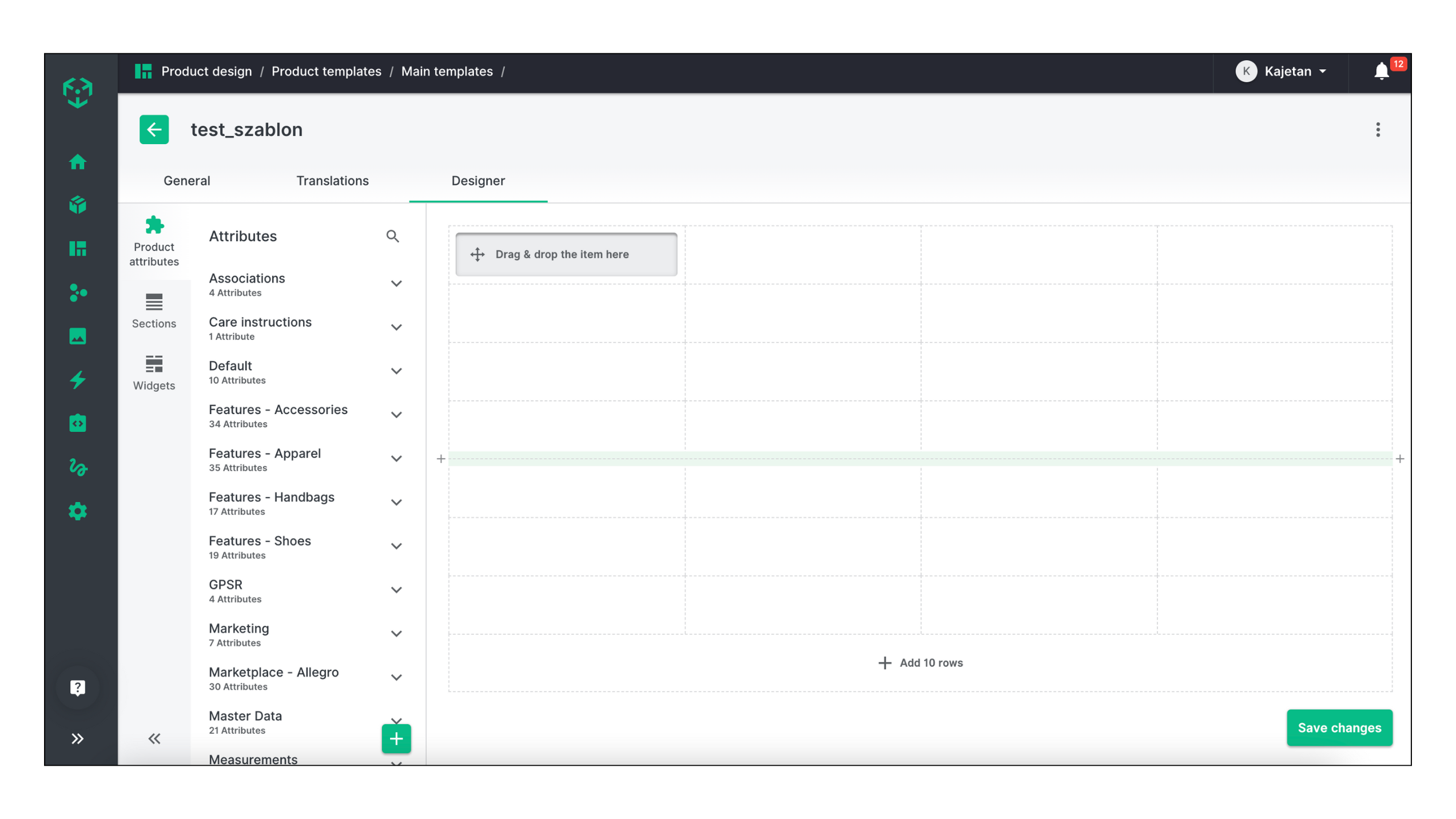
Instead of configuring structures through tables or forms — as is common in many PIM systems — Ergonode PIM lets you design templates using visual building blocks. All changes made in this view are immediately reflected across all products assigned to the template.
The template is based on a grid layout, where each element can be placed and resized both vertically and horizontally. Rows can be added or removed easily, giving you full control over the layout.
On the left side, you’ll find a menu with the core elements used to build your product template.
The Building Blocks of a Product Template in Ergonode PIM
Every product template in Ergonode PIM consists of three core components that you can freely combine and arrange in the Designer:
1. Attributes
Attributes represent actual product data and appear in the Designer as gray fields. These can include:
- size,
- price,
- material composition,
- technical parameters.
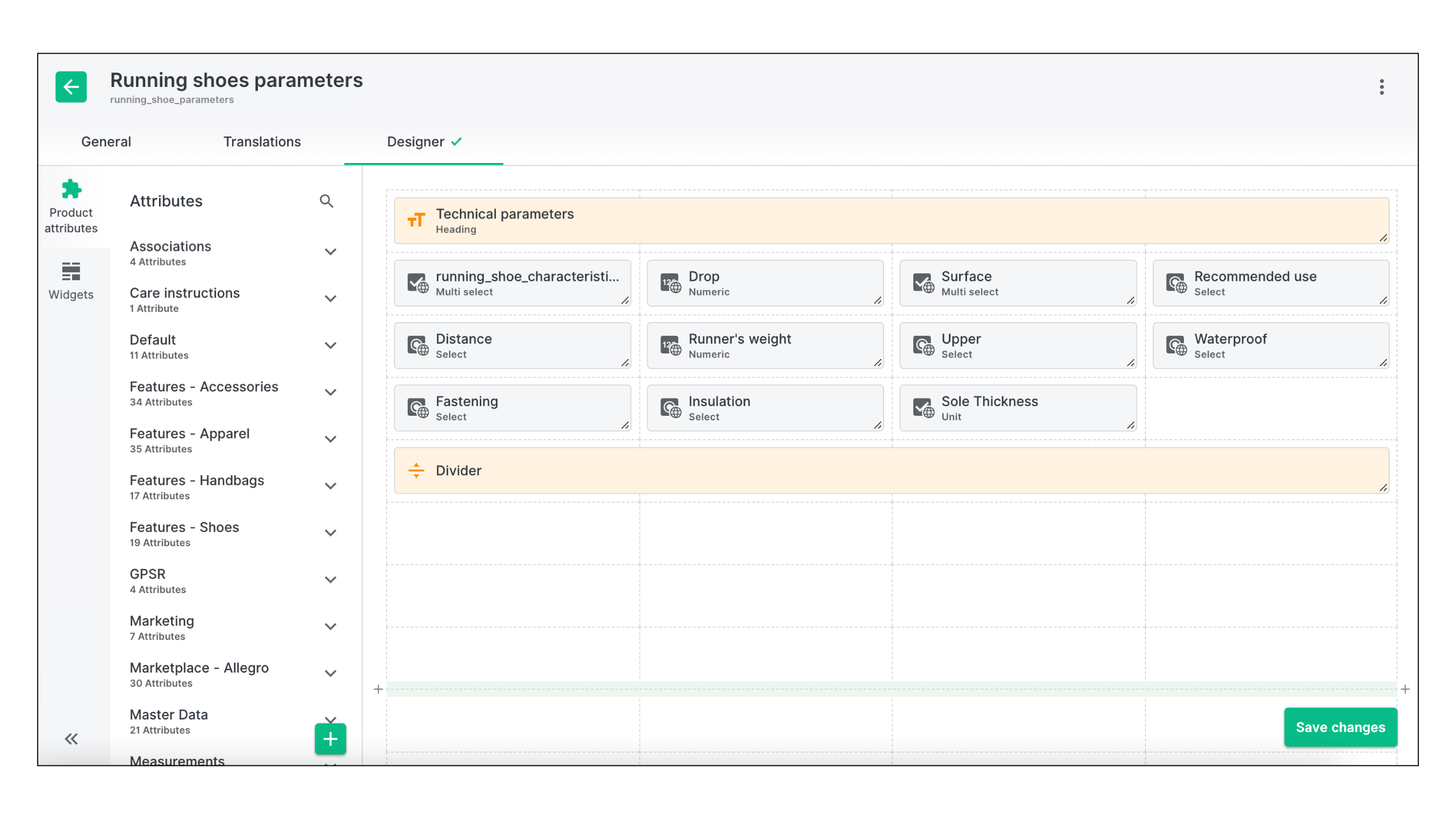
Attributes are the elements later exported to sales channels and used in integrations. In our running shoes example, we added several attributes unique to this product type, such as recommended running distance, upper finish, and intended running surface.
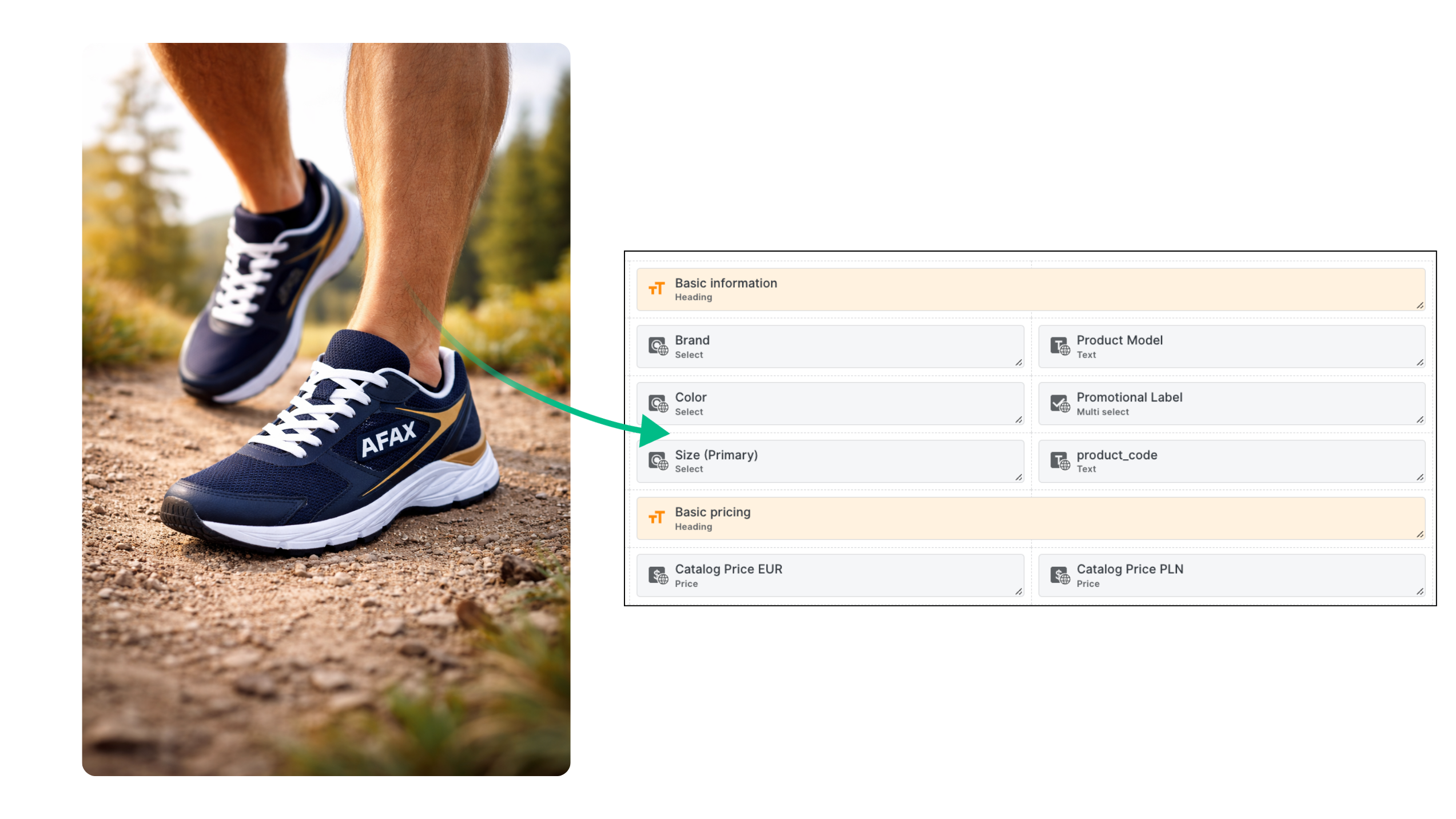
Tip: Attributes and attribute options can be localized, supporting multi-market operations. We cover this topic in detail in our article on cross-border strategies.
2. Widgets
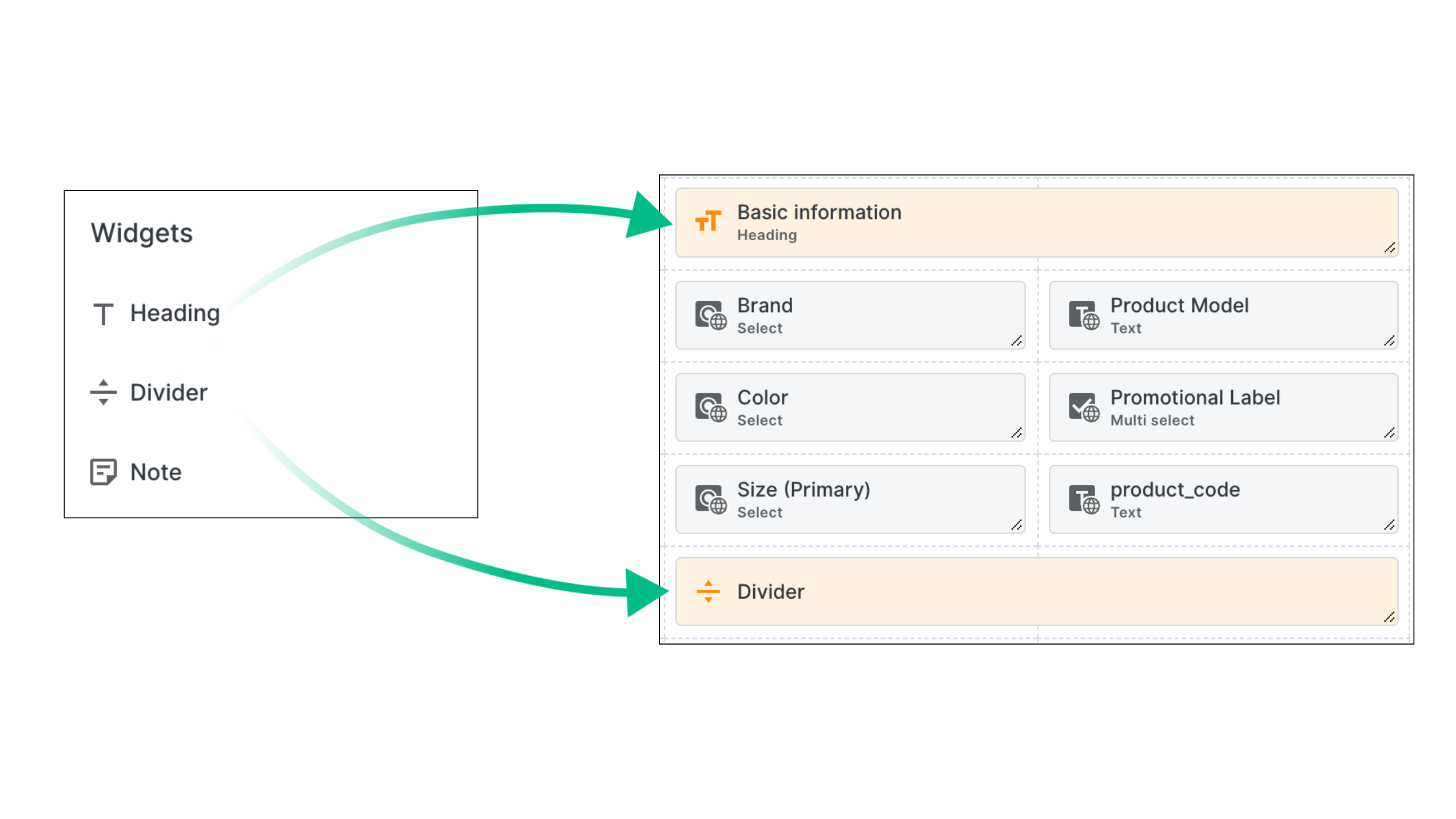
Widgets help structure and describe the product page. They include:
- headings that define thematic sections,
- visual separators,
- helper notes for users.
Thanks to widgets, product pages remain readable and intuitive to edit — even when they contain a large amount of information.
3. Sections (Attribute Sets)
Sections allow you to group multiple related attributes into a single logical block. This is especially useful when:
- several or even dozens of attributes relate to the same topic,
- you want to maintain a consistent layout across multiple templates.
Examples include sections like “Technical parameters” or “Care instructions,” which you create once and reuse across different product families.

One of the biggest advantages of sections is reusability.
When regulations change and the same attributes must be added to all products, you simply update the section — and the changes are applied everywhere it’s used. This saves significant time, especially when managing hundreds of products.
Previously shown attributes were grouped into a single section and then added to the product page, making the template easier to browse and edit.
Sections can also have defined completeness levels, making it easier to track how close a product is to being ready for publication.
By combining widgets, attributes, and sections, you can design a product page exactly the way you need — without the rigid constraints typical of many PIM systems.
See the video below if you need additional help with any of the steps.
Automatic Assignment of Products to Templates
Designing information structure is one part of catalog management, but with larger catalogs, automation becomes crucial.
In Ergonode PIM, products can be assigned to the appropriate templates automatically — without manual user intervention — for example, based on the product’s catalog name.
This is especially useful for:
- importing large volumes of data,
- ERP integrations,
- managing extensive product catalogs.
Automatic assignment doesn’t replace template design — it complements it, ensuring consistency and saving time in daily operations.
Automation can also be used to automatically populate attributes. For instance, in the running shoes example, certain technical parameters may imply additional product features — if the shoes are designed for outdoor running, automation can assign enhanced cushioning attributes.
Tip: Learn more about how automations work in Ergonode PIM.
Summary
Designing product family templates is one of the first and most important stages of working with a PIM system. This is where you decide whether your product data will be consistent, readable, and ready for use across sales channels.
Ergonode PIM simplifies this process with a visual Designer that lets you build product pages in a flexible, intuitive way — without the technical limitations typical of many PIM platforms. A well-designed template not only organizes data but also speeds up team workflows and supports catalog scalability.
If you want full control over how your product pages look and function, product family templates in Ergonode PIM are the best place to start.
FAQ
Are ready-made product family templates available in Ergonode PIM?
While templates are typically designed individually to match an organization’s data structure and presentation needs, we also offer ready-made templates tailored to popular product types.
Can I create an unlimited number of templates?
Yes. Ergonode PIM does not limit the number of product family templates you can create.
Are there limits on the number of attributes per template?
No. You can use any number of attributes and sections within a single template.
Can I edit a template at any time?
Yes. Changes made to a template are automatically reflected across all products assigned to that family.
Can template elements be reused?
Yes. Sections (attribute sets) can be reused across multiple templates, making it easier to maintain a consistent data structure.
Do product family templates affect integrations and exports?
Yes. A consistent template structure leads to a better customer experience. Products are easier to filter, and information is structured and well thought out across channels.


